
Visual guide: a screenshot tour
A tour of every screen in JunctionBox, with real screenshots.
- Dashboard
- Models: connecting AI providers
- Agents
- Chats
- The output panel
- Terminal access from a chat
- Screen sharing from a chat
- Compare
- Teams and the Orchestrator
- Run History
- Memory
- Schedules
- Webhooks
- Telegram and iMessage
- MCP Servers
- Plugins
- Pit Boss Grill
- Smart TV Launcher: your Roku and Google TV home screen
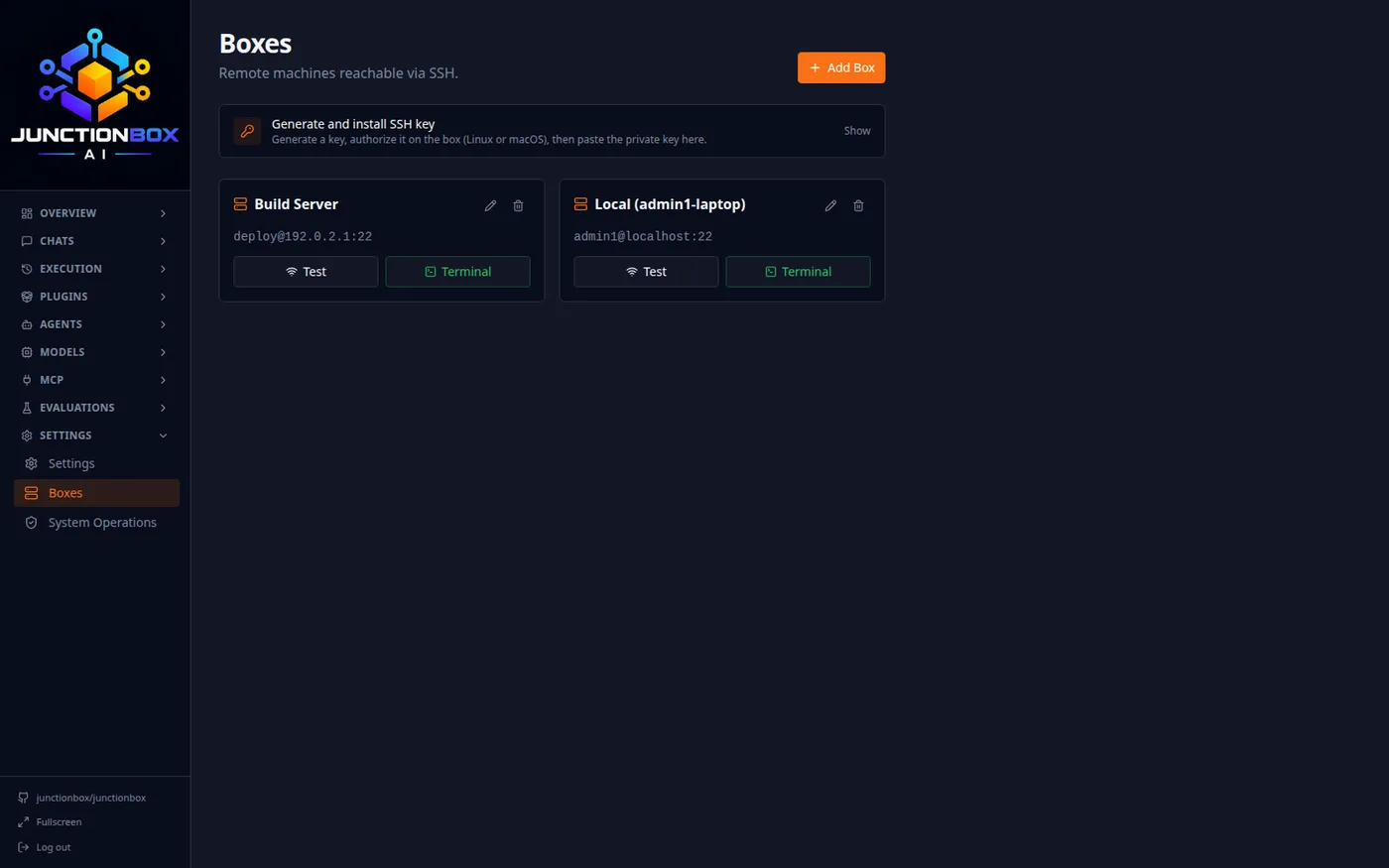
- Boxes: remote machines and terminals
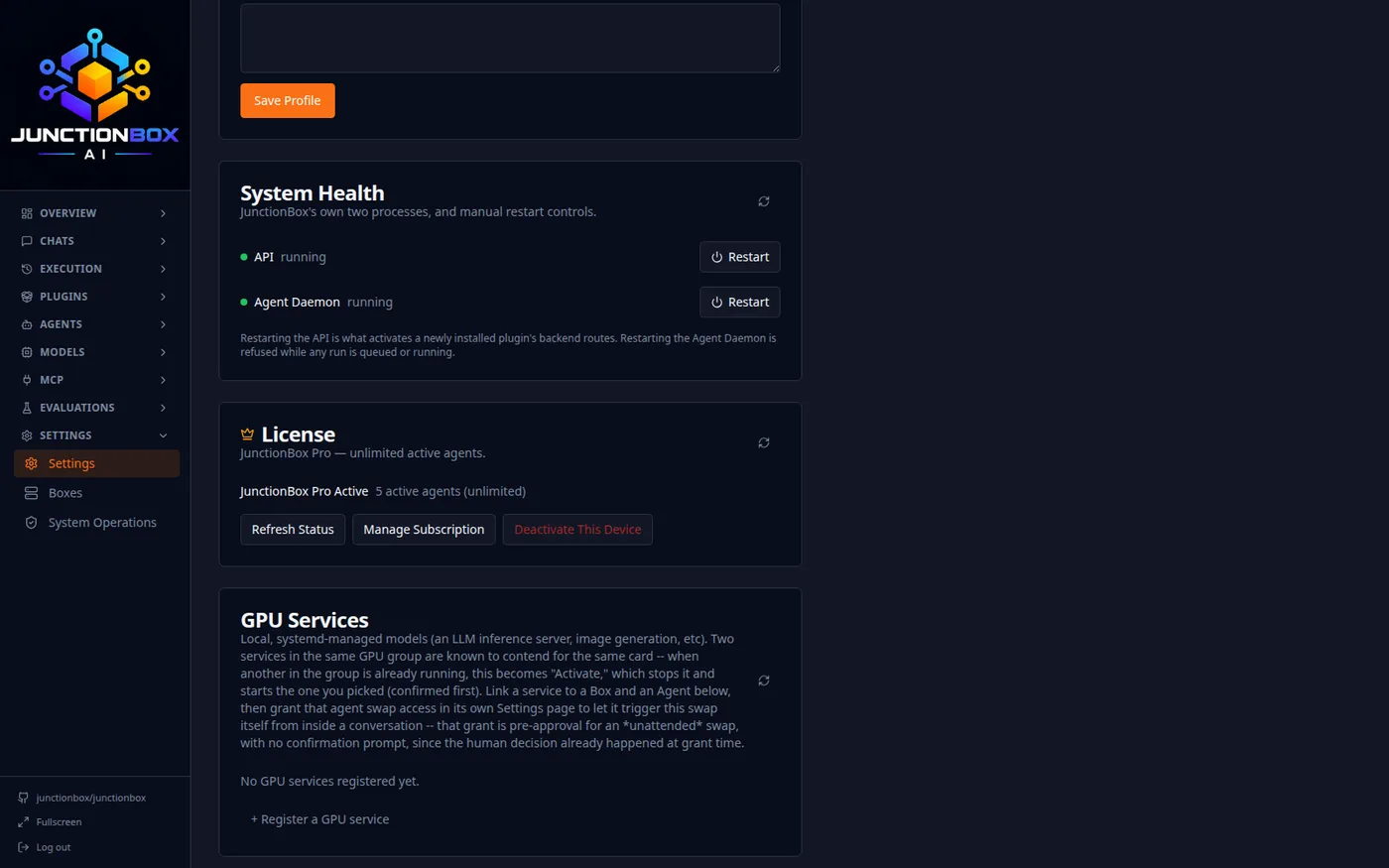
- Licensing
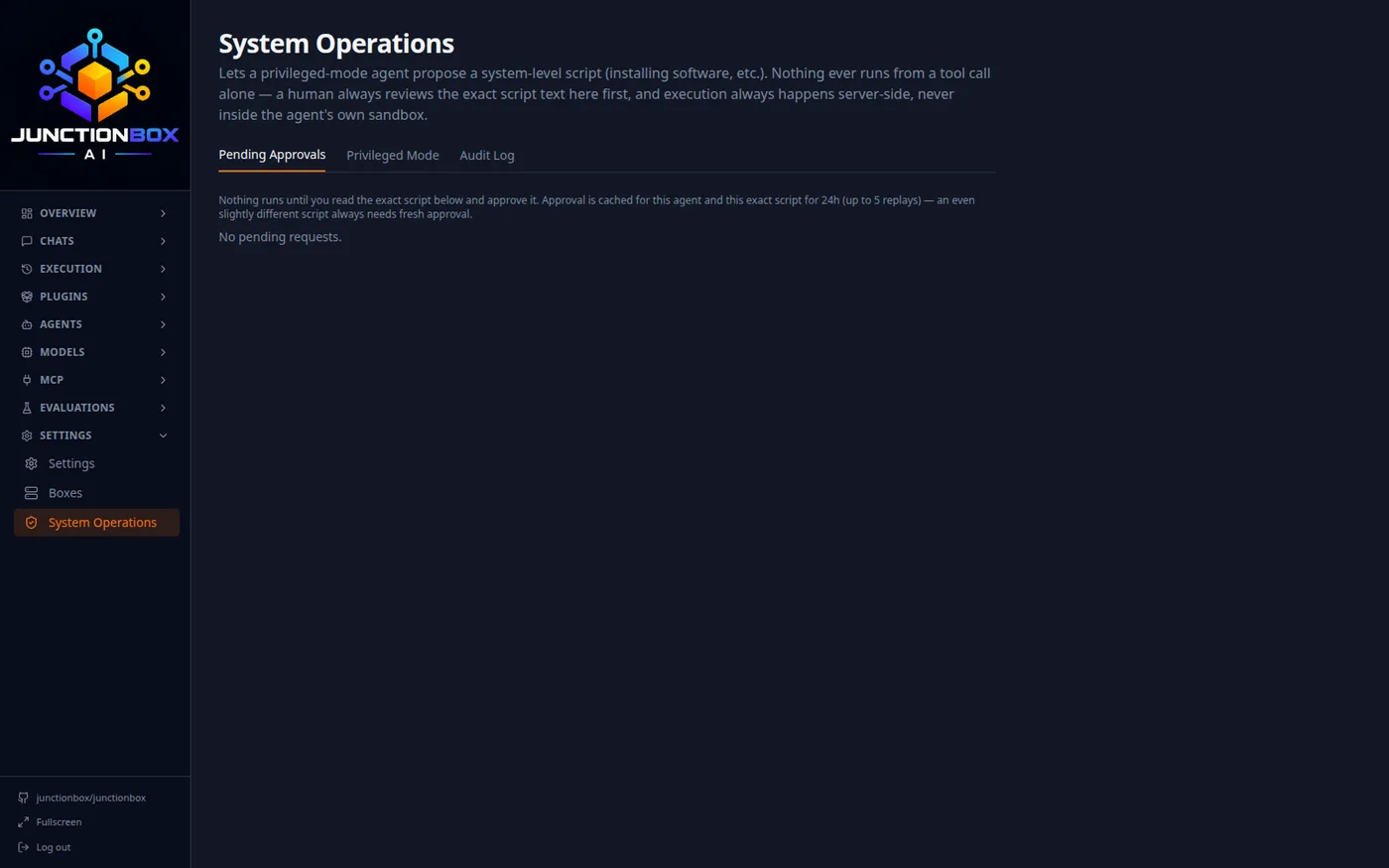
- System Operations
A screenshot tour of every major part of JunctionBox. This is the "show me" companion to USER_GUIDE.md, which has the full task-oriented detail for each feature — this doc is for getting oriented fast, or for showing someone what JunctionBox actually looks like before they install it.
All screenshots below are from a real running instance with real agents, real providers, and real completed runs — nothing here is mocked up.
Dashboard
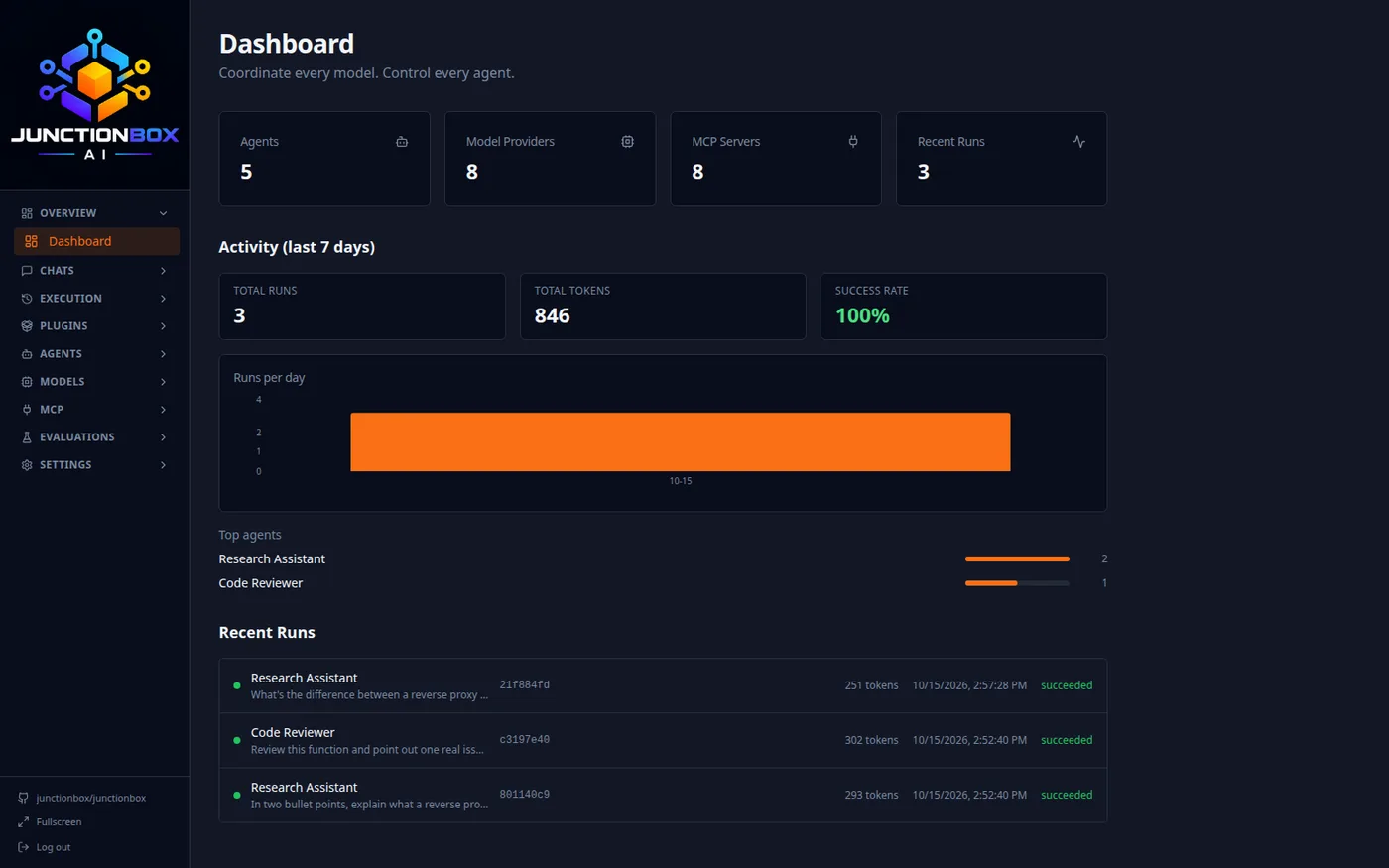
The landing page: how many agents, providers, and MCP servers you have configured, a 7-day activity chart, which agents are doing the most work, and the most recent runs at a glance.
Models: connecting AI providers
Models in the sidebar is where every provider lives. The local CLI tools (Claude Code, Codex, Grok) are auto-detected — if you're already logged into one on this machine, JunctionBox finds it and marks it detected, with no API key to paste in anywhere. Cloud API providers (Anthropic, OpenAI, xAI) and Ollama (local or remote) sit right alongside them.
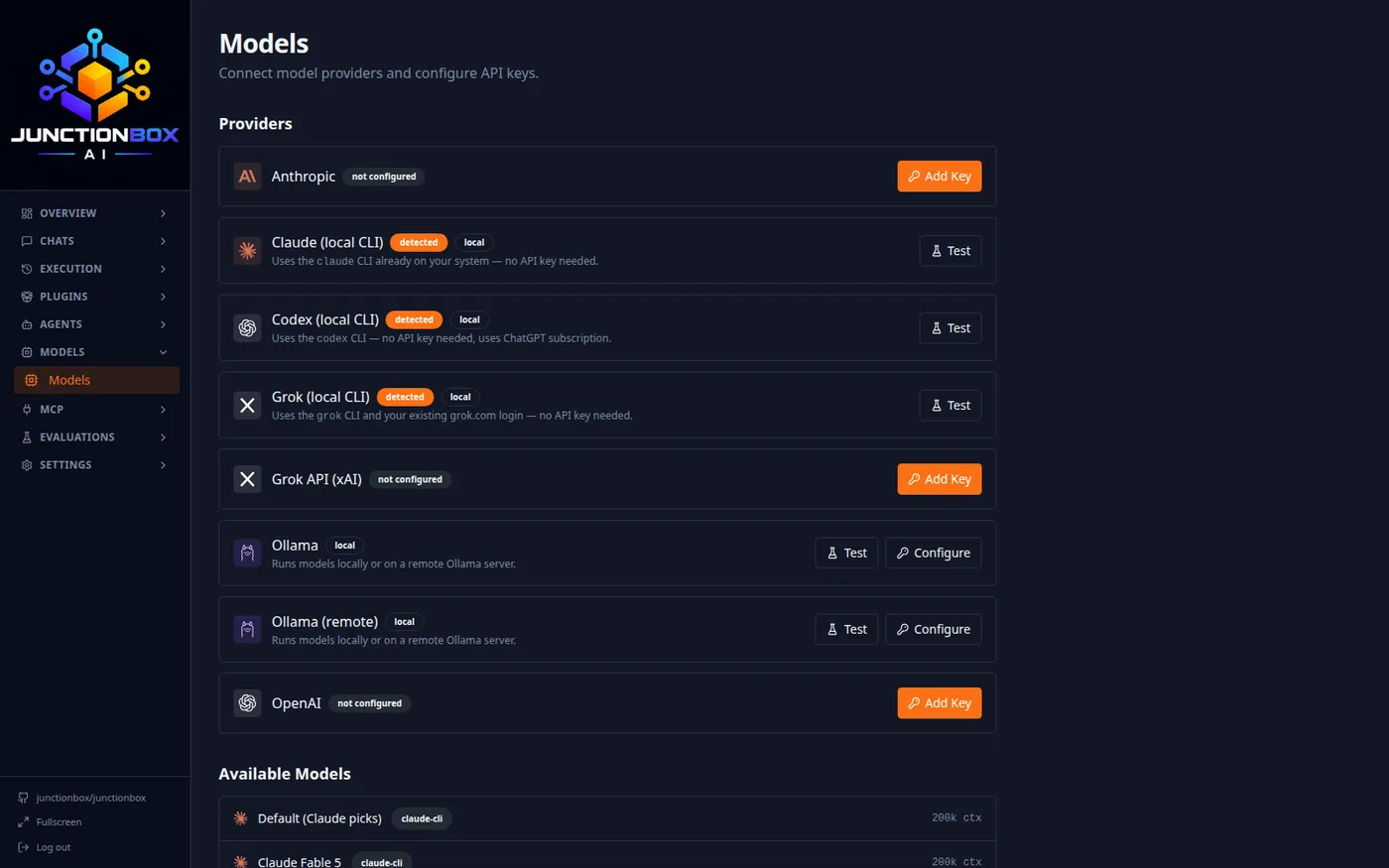
This is also what makes mixed-provider teams possible: one agent can run on your Claude subscription, another on your ChatGPT subscription via Codex, another on Grok, another on a fully local Ollama model — all in the same JunctionBox instance, side by side.
Agents
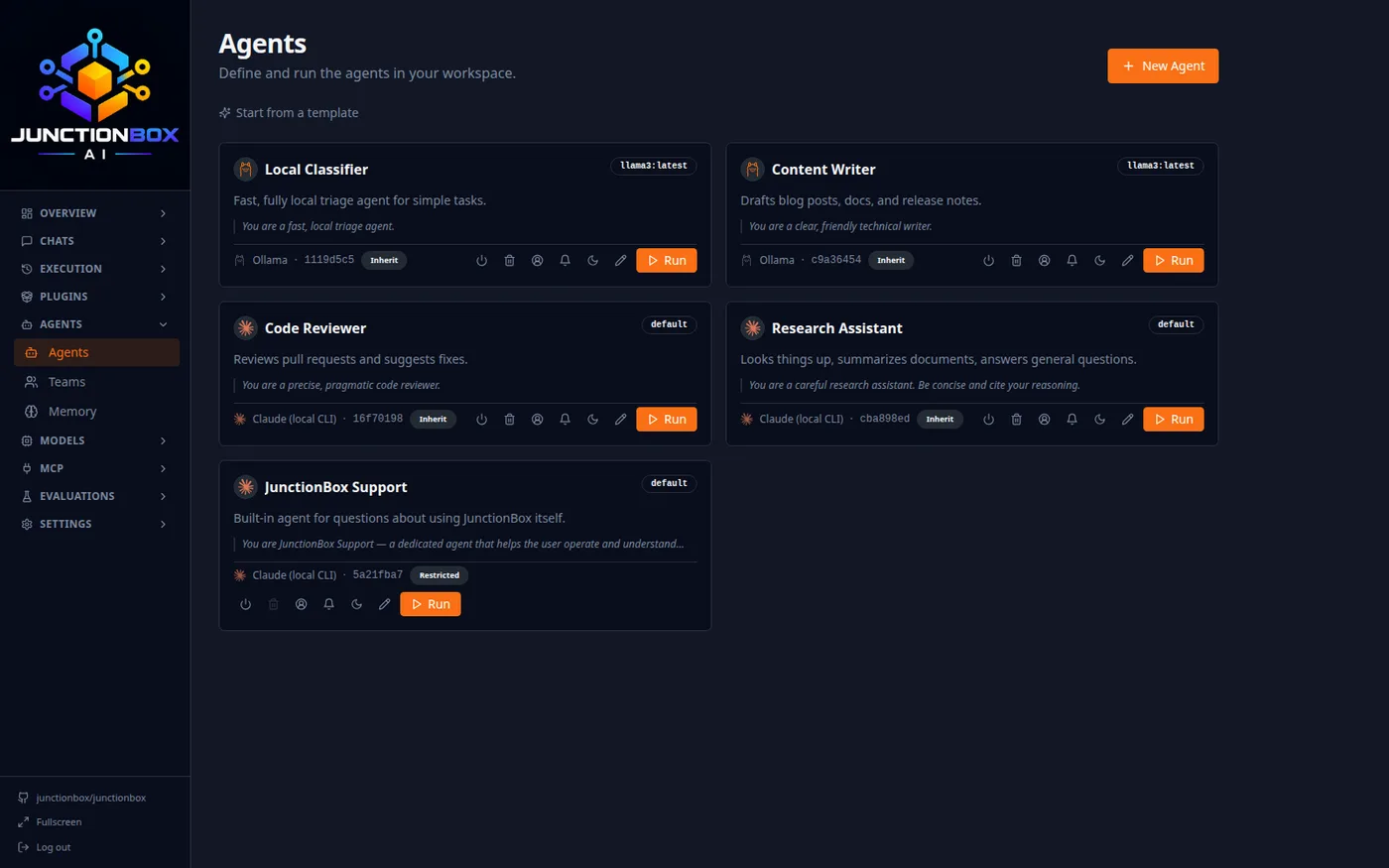
Each agent is a named configuration: provider/model, system prompt, permission profile, and a set of optional capabilities (memory, structured identity, delegation). The card shows its provider and model at a glance.
Chats
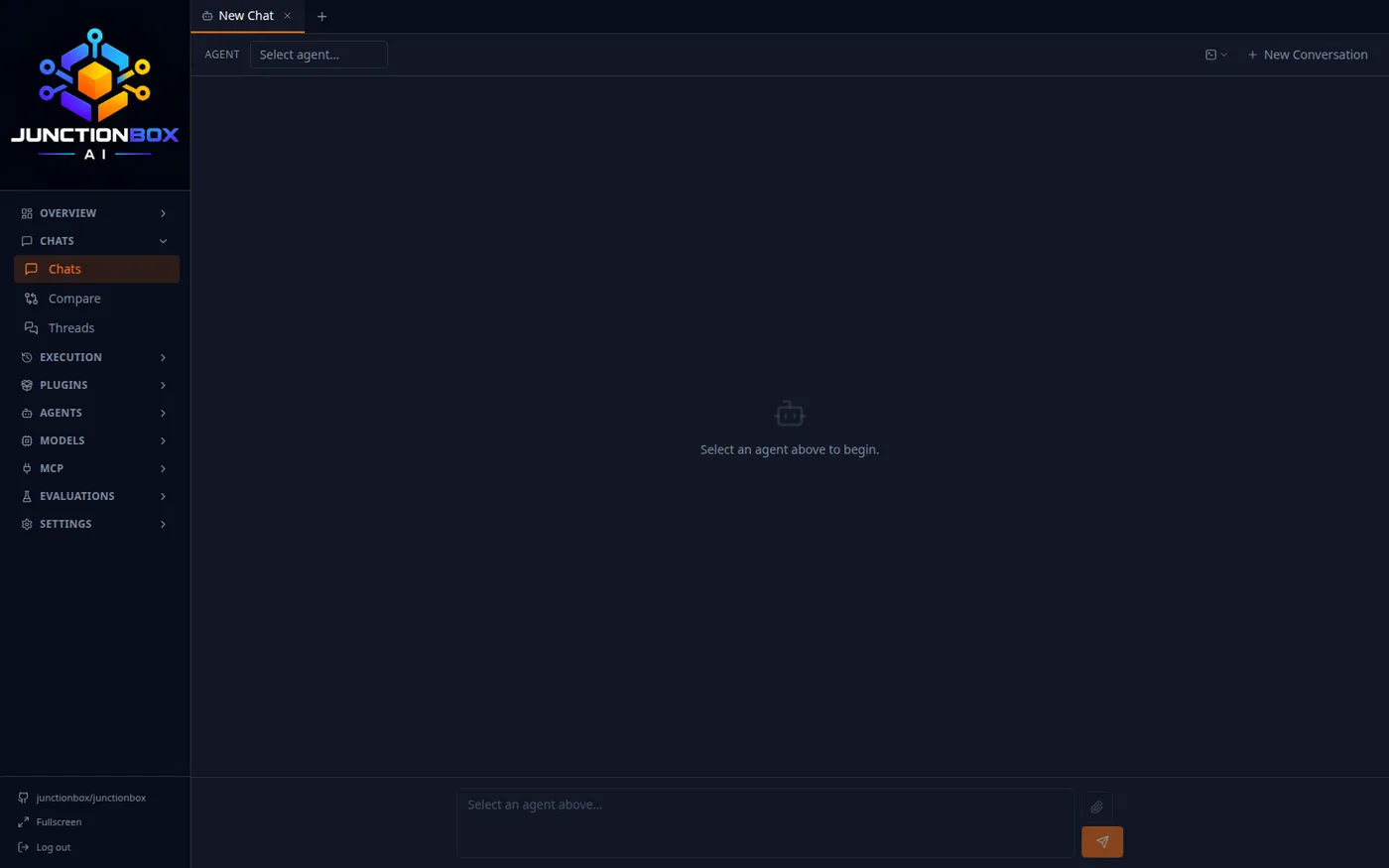
The main way you talk to an agent — streamed responses, markdown rendering, per-turn timing and cost, and the name you gave JunctionBox for yourself worked into every reply.
The output panel
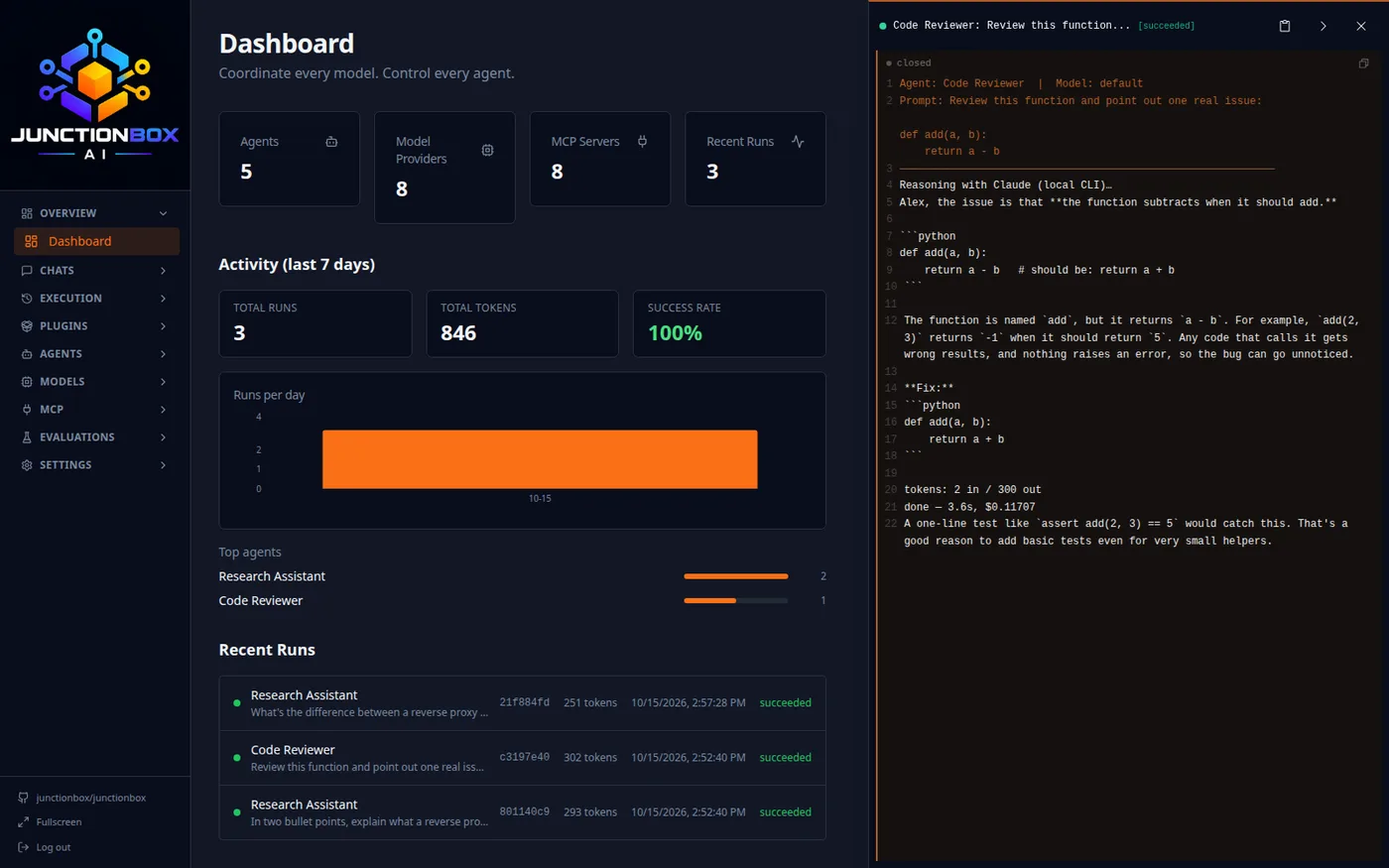
Any background job — a scheduled run, a plugin action, a long-running task — can be popped open as a swing-out panel on the right side of the screen without leaving whatever page you're on. It streams the real activity log and stays docked while you keep working elsewhere in the app.
Terminal access from a chat
From inside a chat, if the agent is tied to a registered machine ("Box"), you can open a real interactive terminal to that machine as its own tab — right next to the chat tab, no separate app or SSH client needed.
Screen sharing from a chat
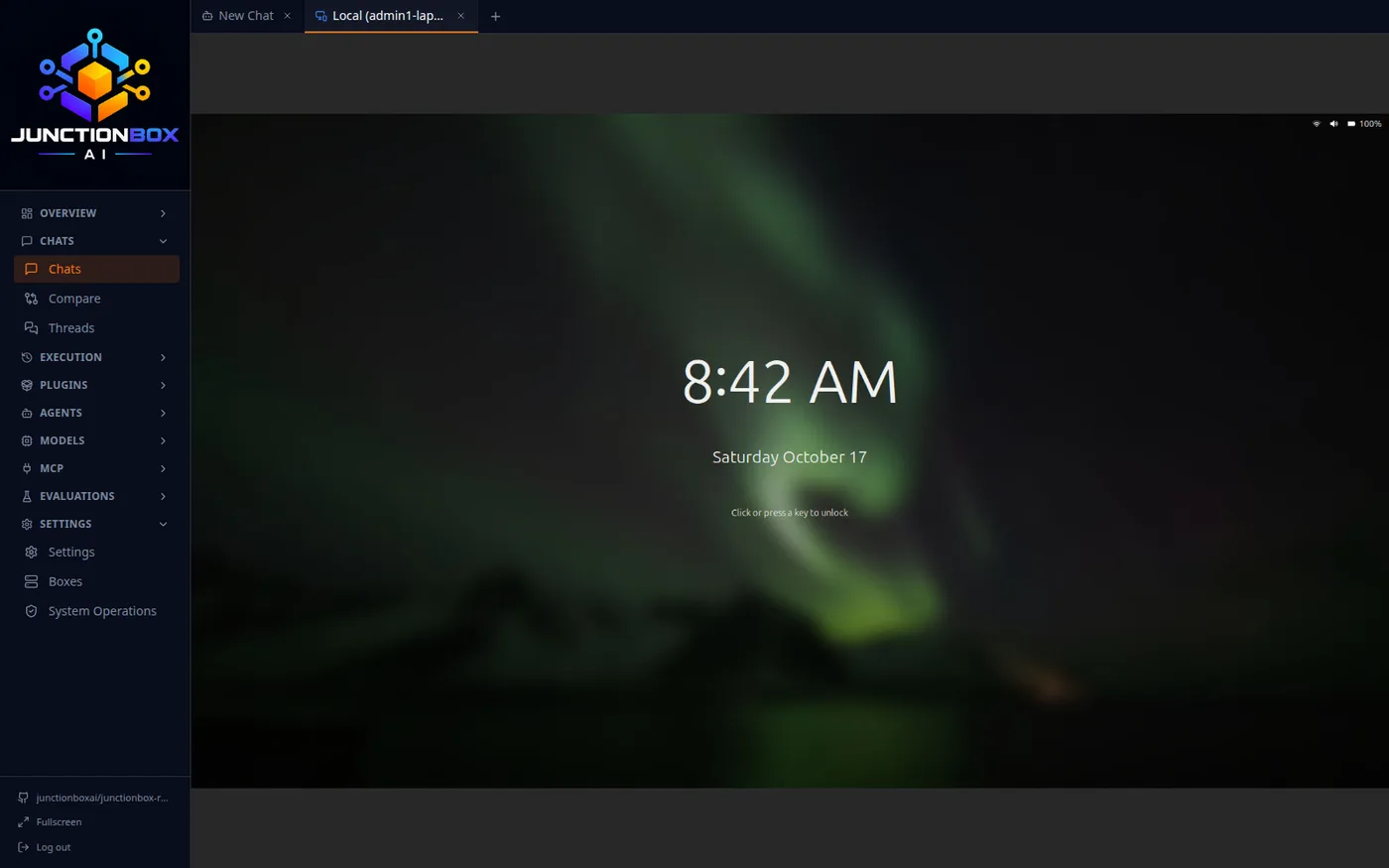
Full remote control — mouse and keyboard, not just a view — of any registered Box, in its own tab right alongside the chat and terminal tabs. Nothing is installed permanently: on Linux a VNC server is set up fresh for the session and torn down when you close the tab, and on macOS it's the OS's own built-in Screen Sharing, switched on only for the session and off again afterward. Works on the machine JunctionBox itself runs on too, and from a phone or tablet browser, with a tap-to-type on-screen keyboard button since there's no physical keyboard to use.
Compare
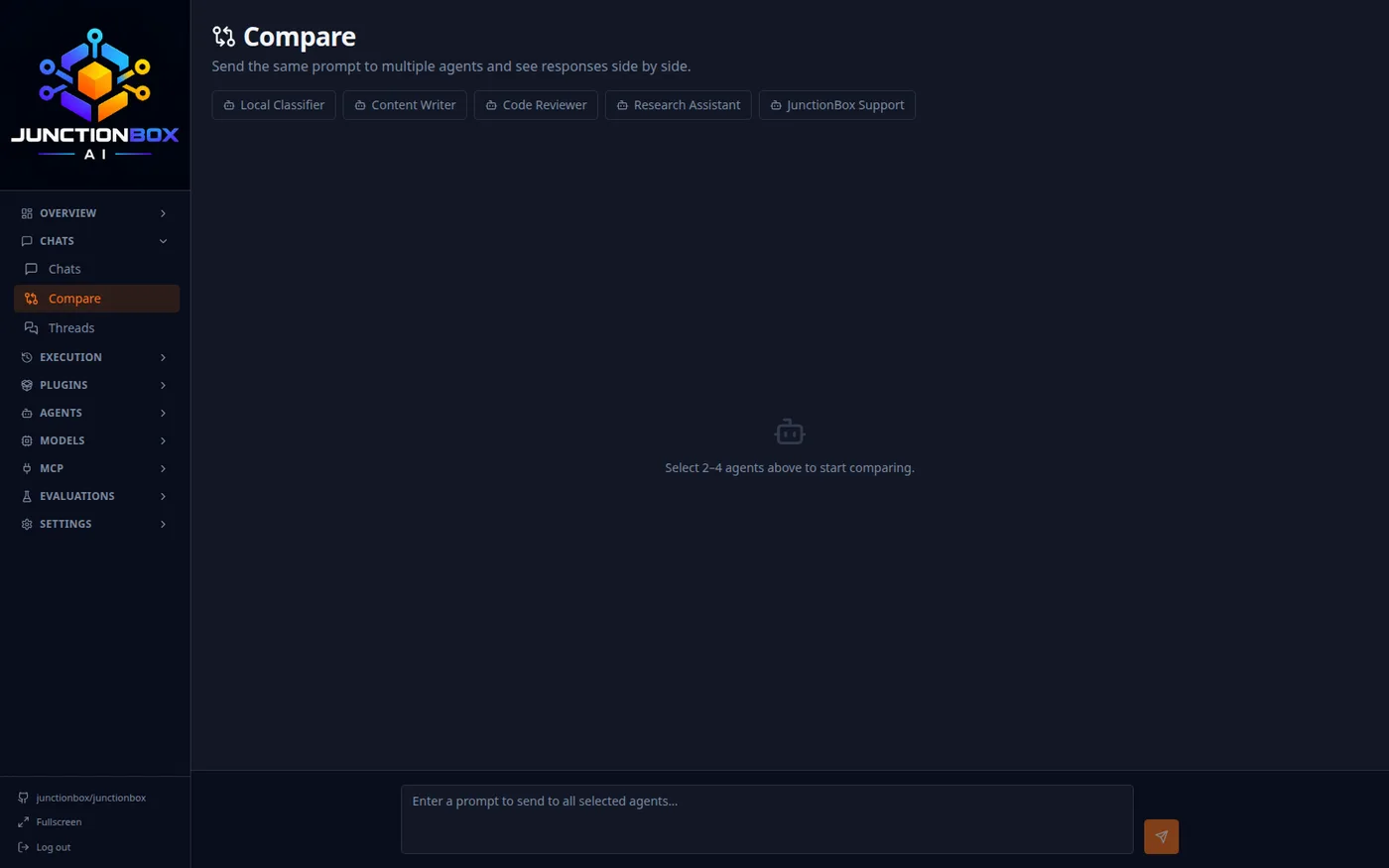
Send the same prompt to 2–4 agents at once and watch their responses stream side by side — useful for picking a model, or sanity-checking a prompt change across providers before committing to it.
Teams and the Orchestrator
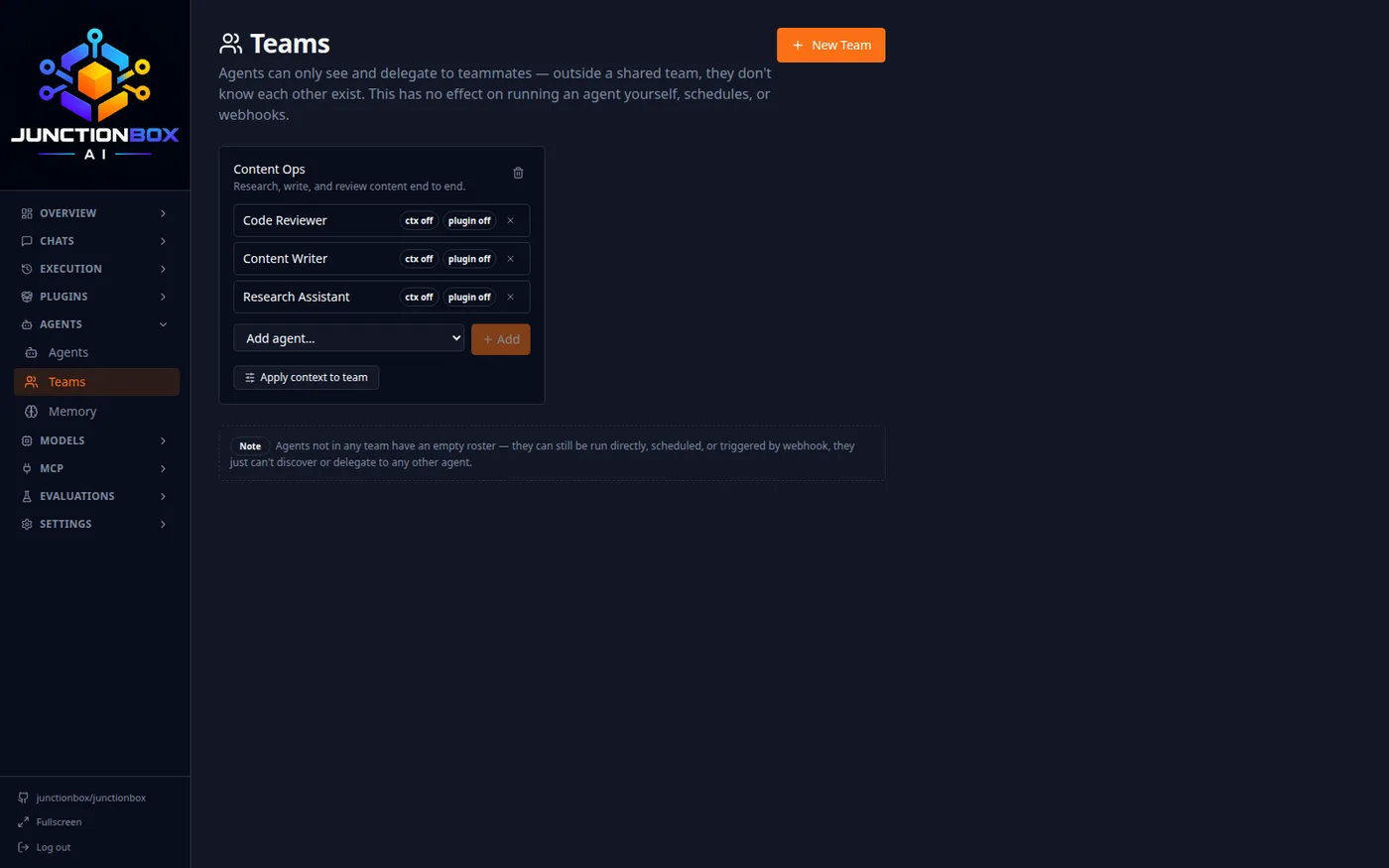
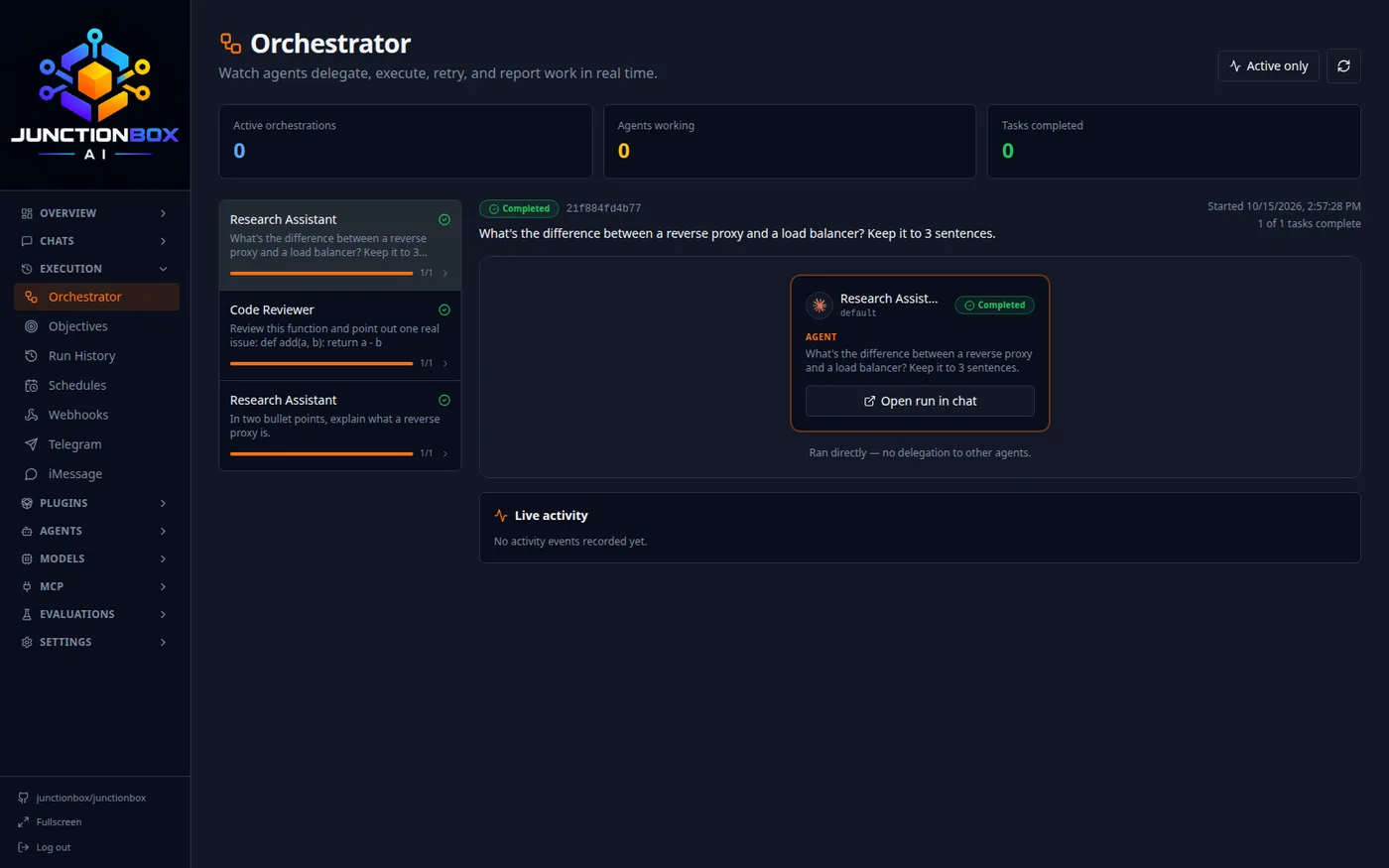
Agents on the same Team can see and delegate work to each other; outside a shared team they don't know the other exists. The Orchestrator page shows this happening live — the originating task, every delegated sub-task, and each one's status, in real time.
Run History
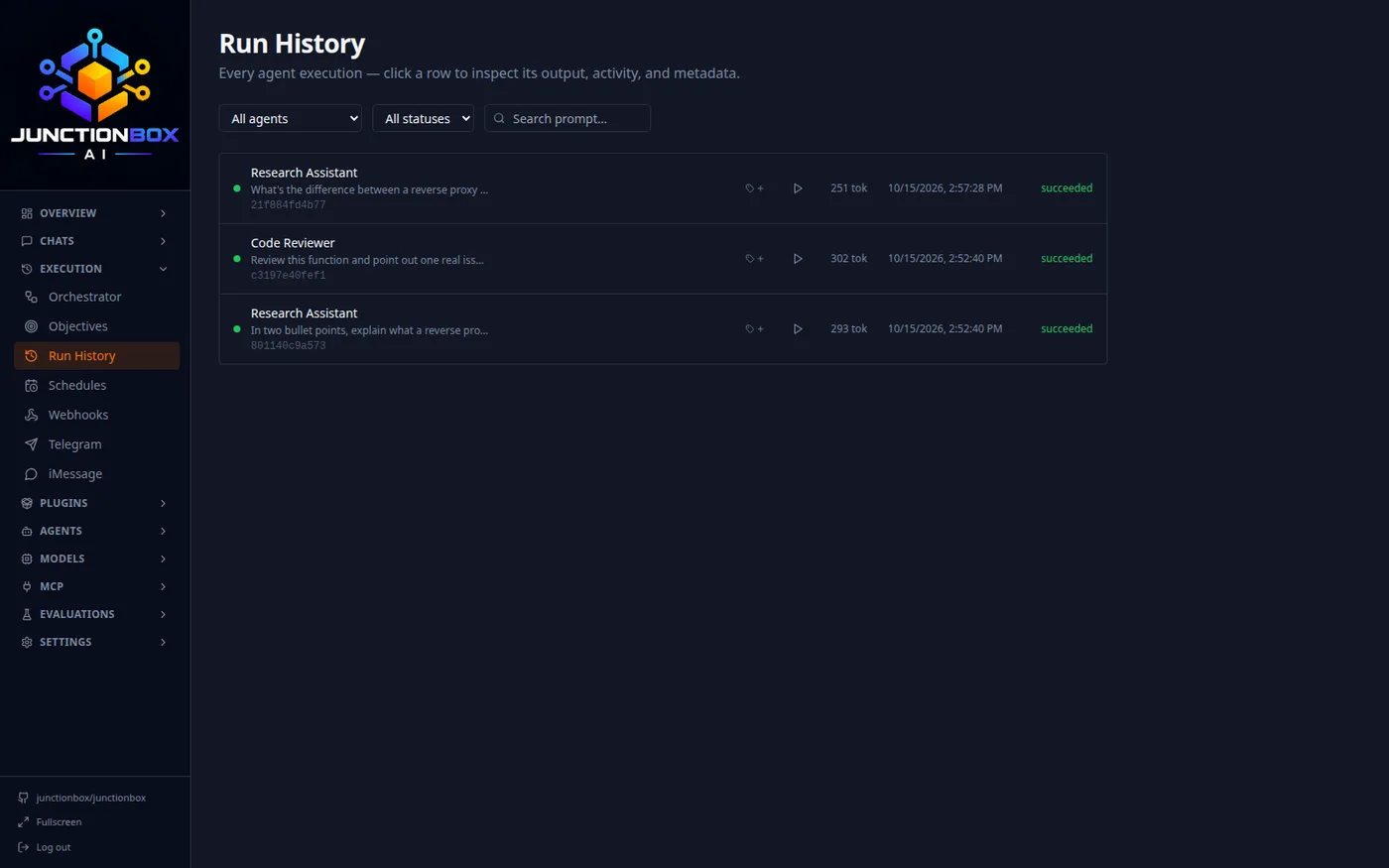
Every single agent execution, filterable by agent and status, with token counts and timing — click into any row for the full output, activity log, and metadata.
Memory
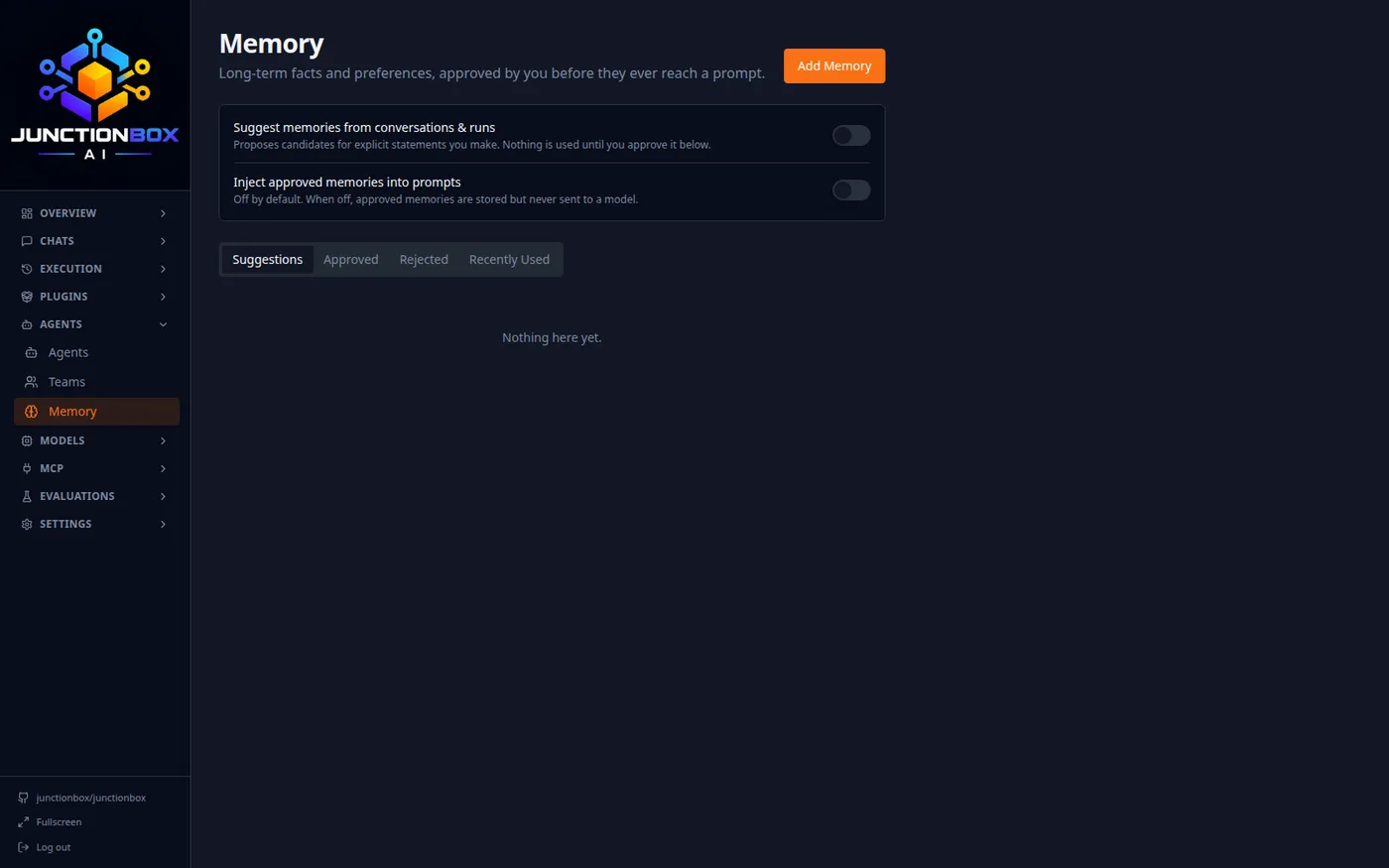
Long-term facts and preferences agents can draw on across conversations — but only after you approve them. Memory capture and memory injection are two separate, off-by-default toggles, so nothing is remembered or used automatically unless you turn it on.
Schedules
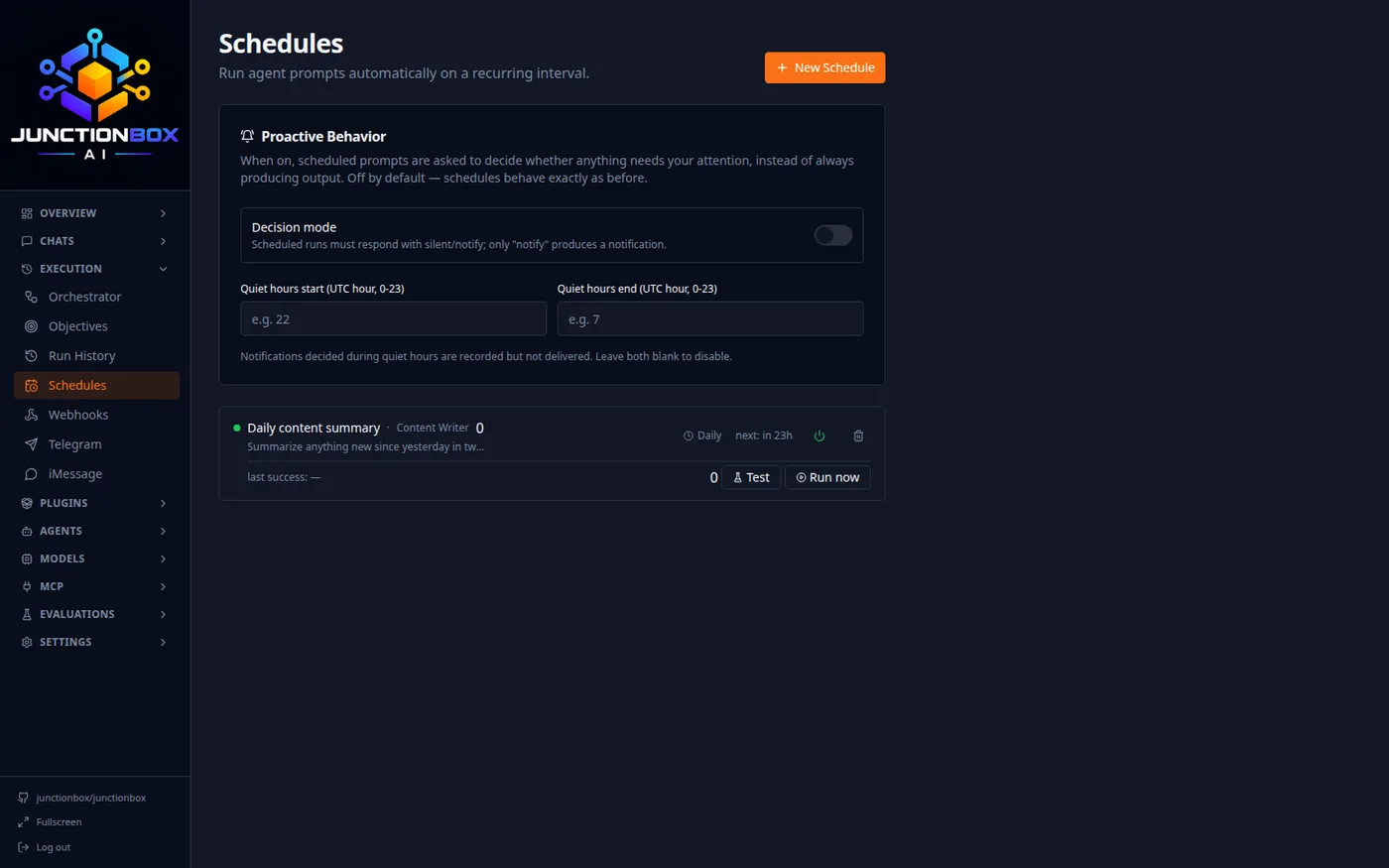
Run an agent's prompt automatically on a repeating interval — a daily summary, a recurring check, anything you'd otherwise have to trigger by hand. A schedule that fails repeatedly auto-pauses rather than failing silently forever.
Webhooks
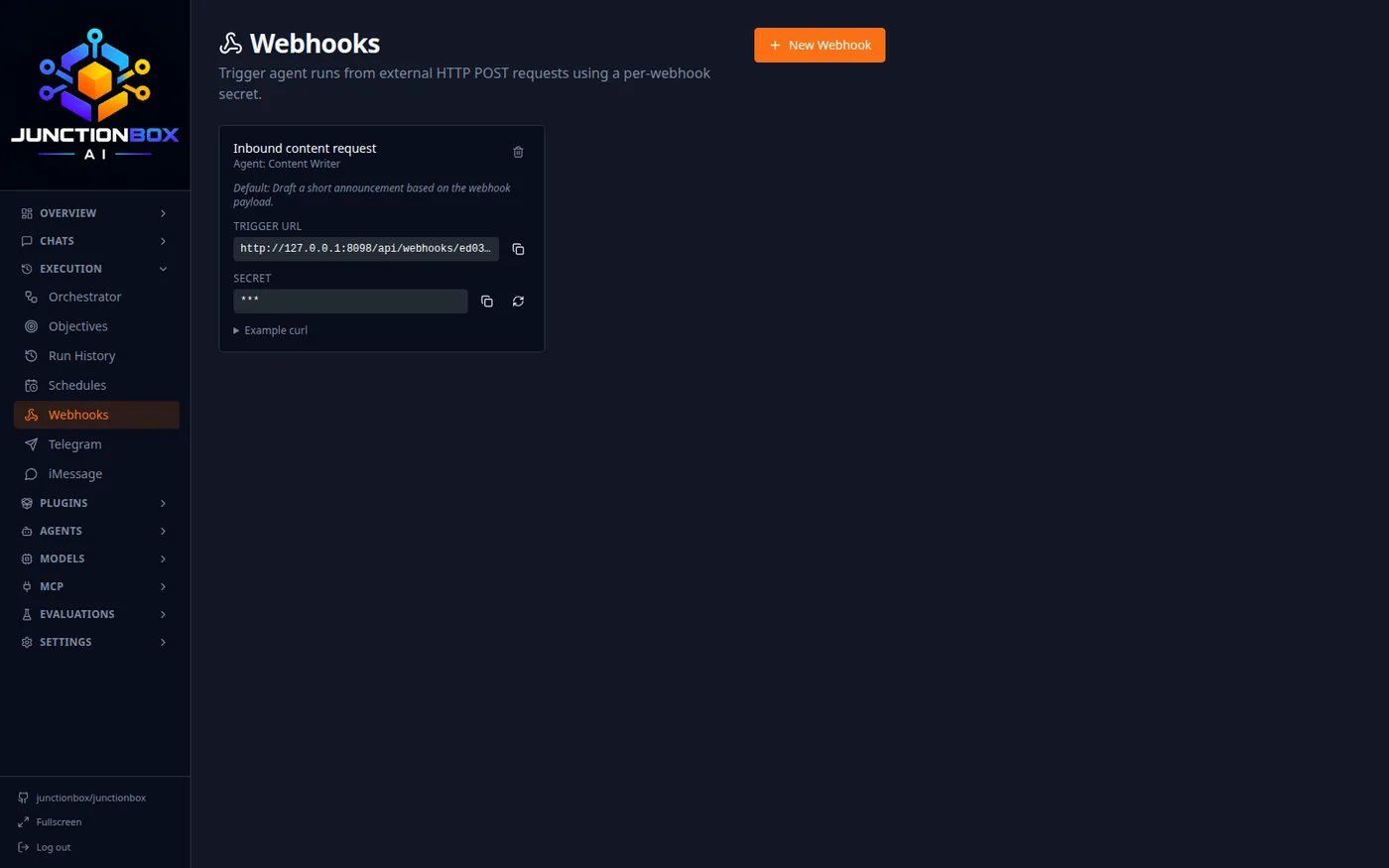
Give any agent a public, secret-protected URL that triggers a run from outside JunctionBox entirely — wire it into a CI pipeline, a form submission, or any other automation.
Telegram and iMessage
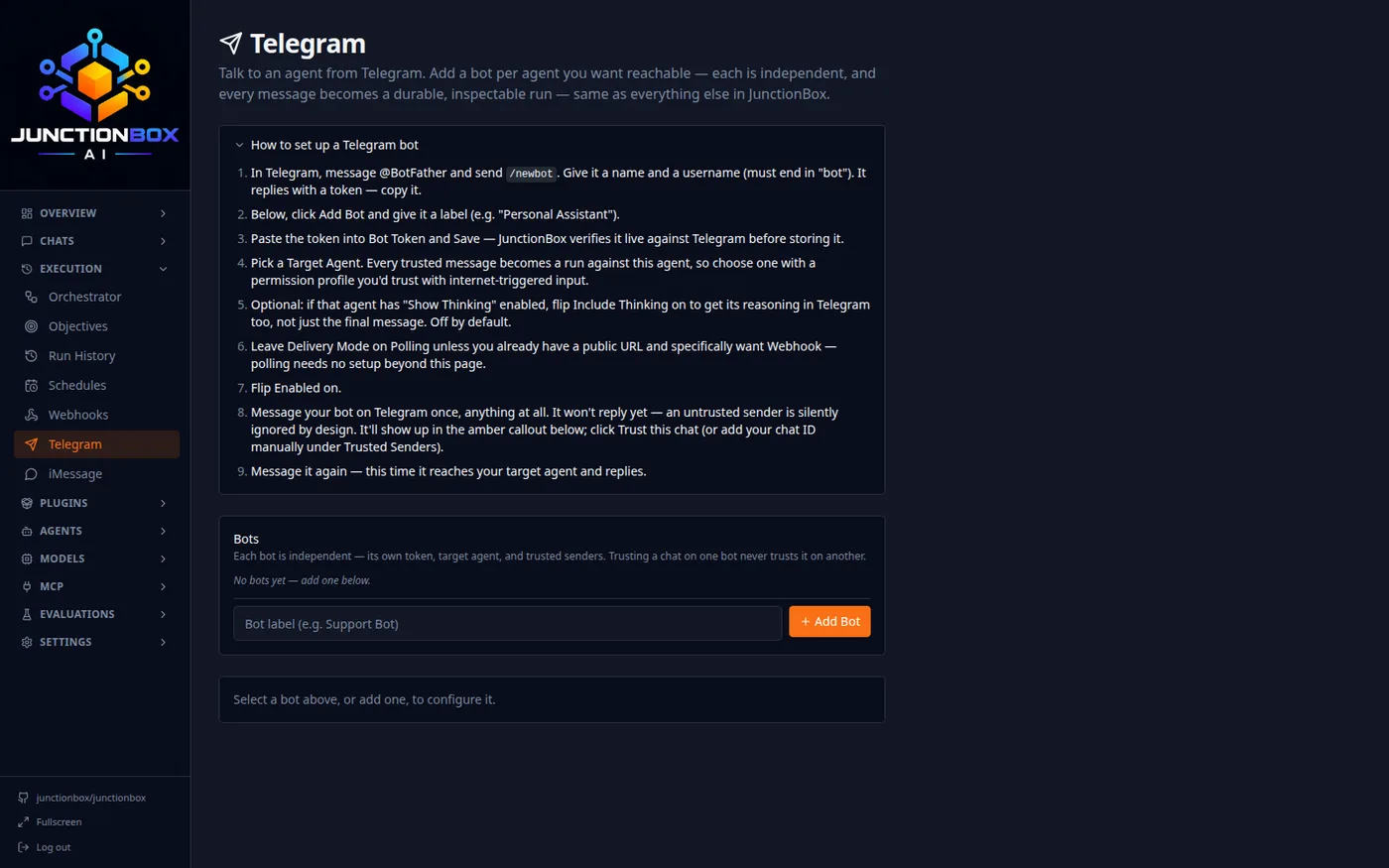
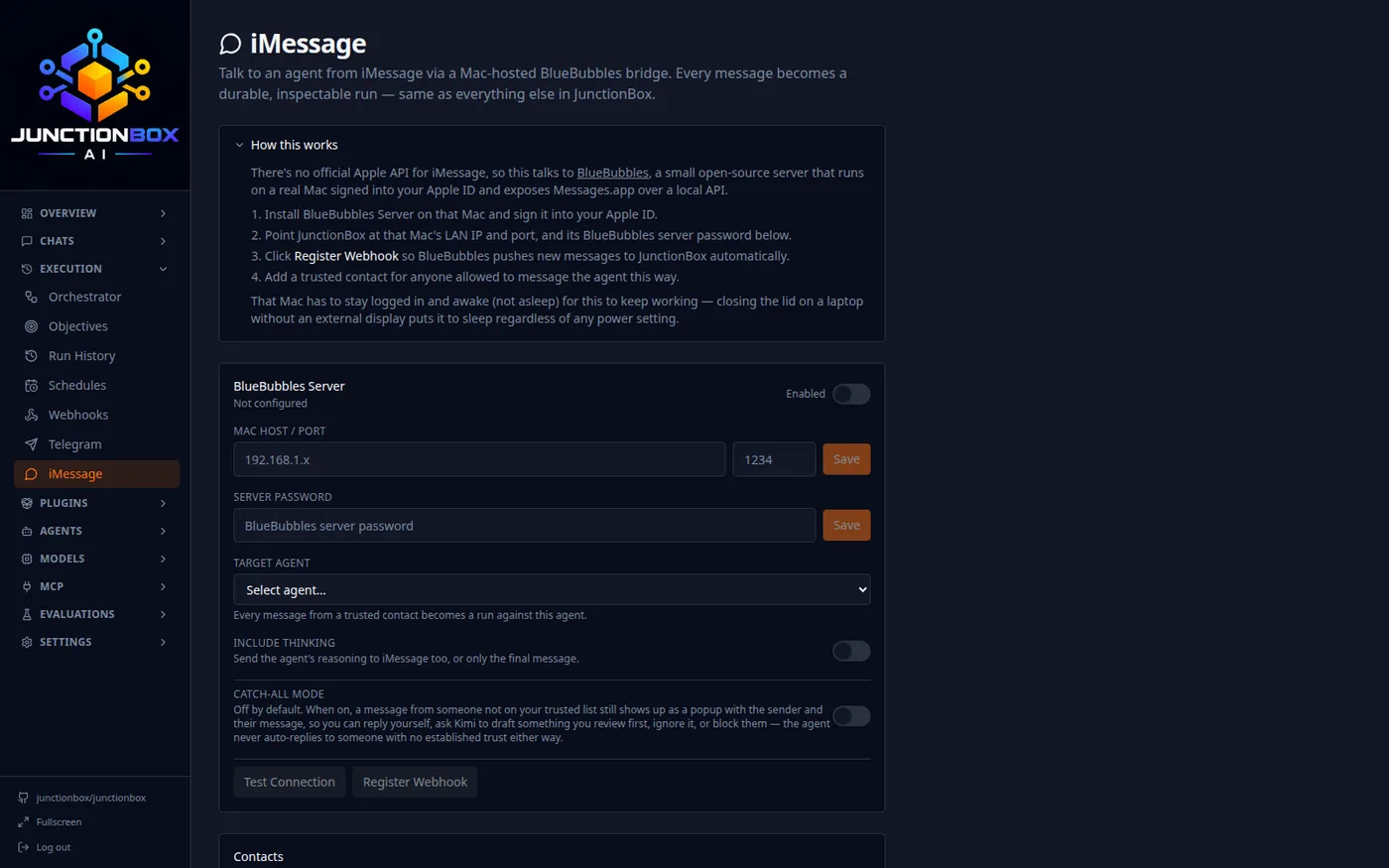
Connect agents to messaging channels you already use. Telegram bots are configured per-agent with an allowlist of trusted chat IDs; iMessage integrates with existing conversations on a connected Mac.
MCP Servers
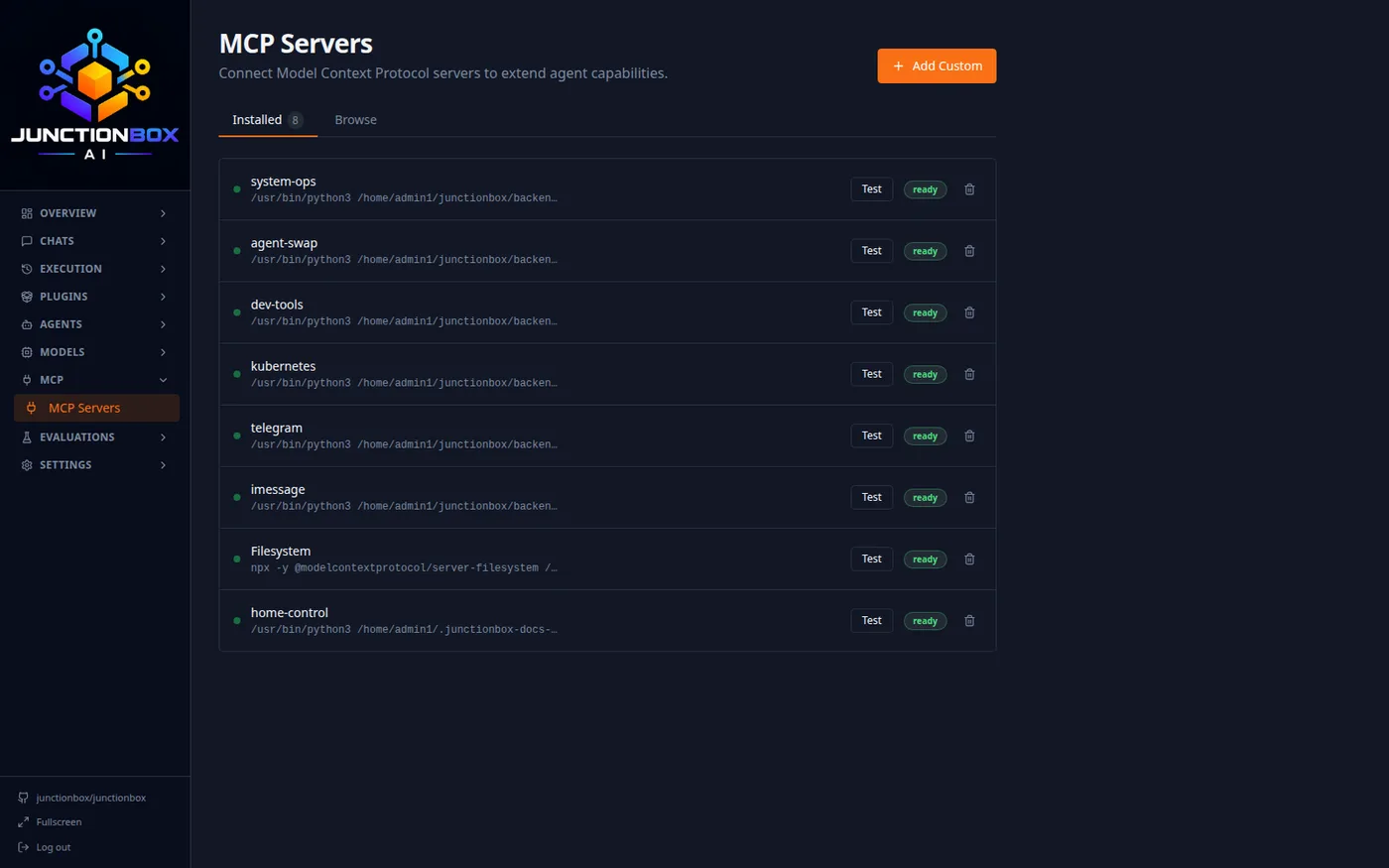
Install Model Context Protocol tool servers from a built-in catalog or the public MCP Registry, and any capable agent can use their tools immediately.
Plugins
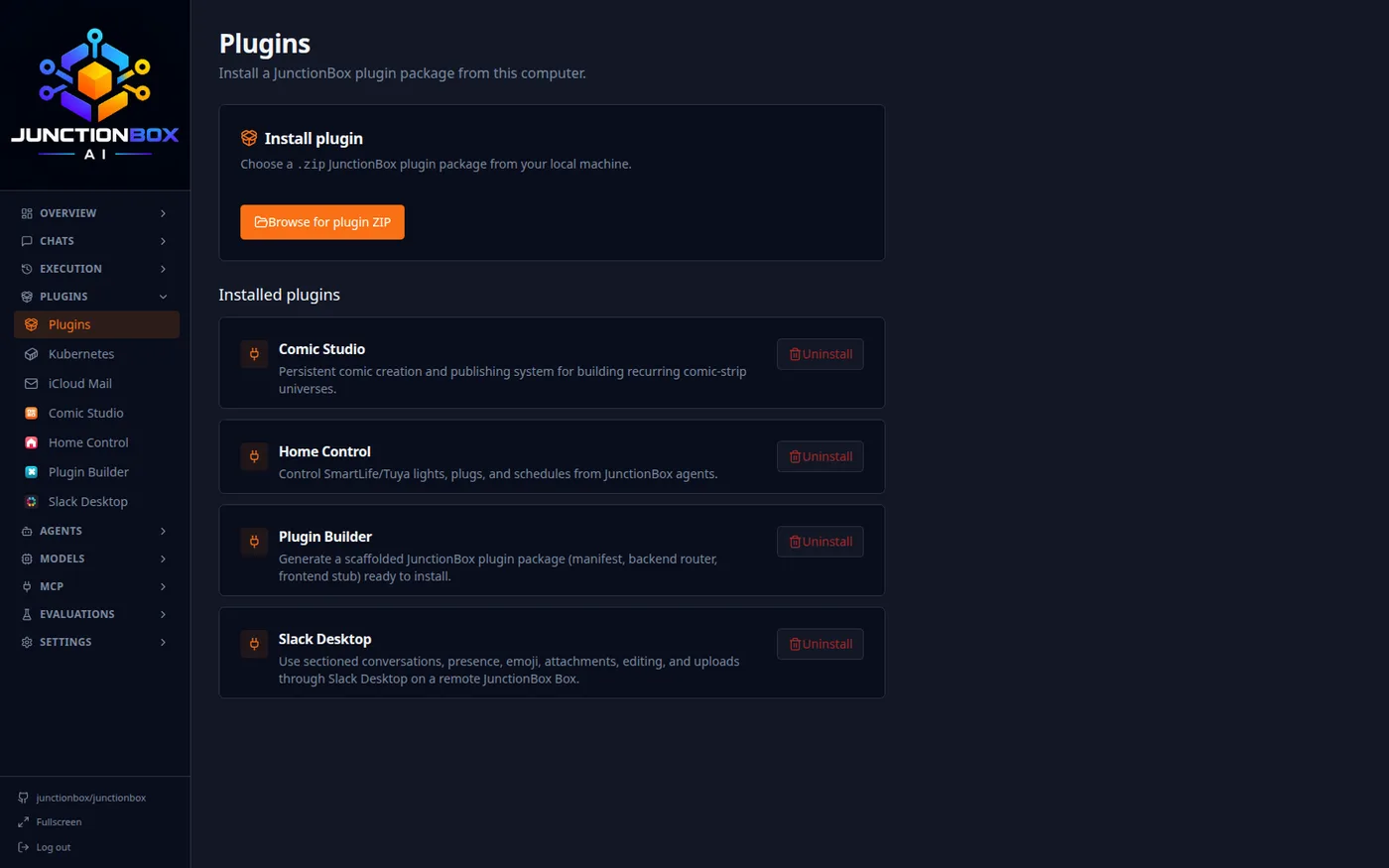
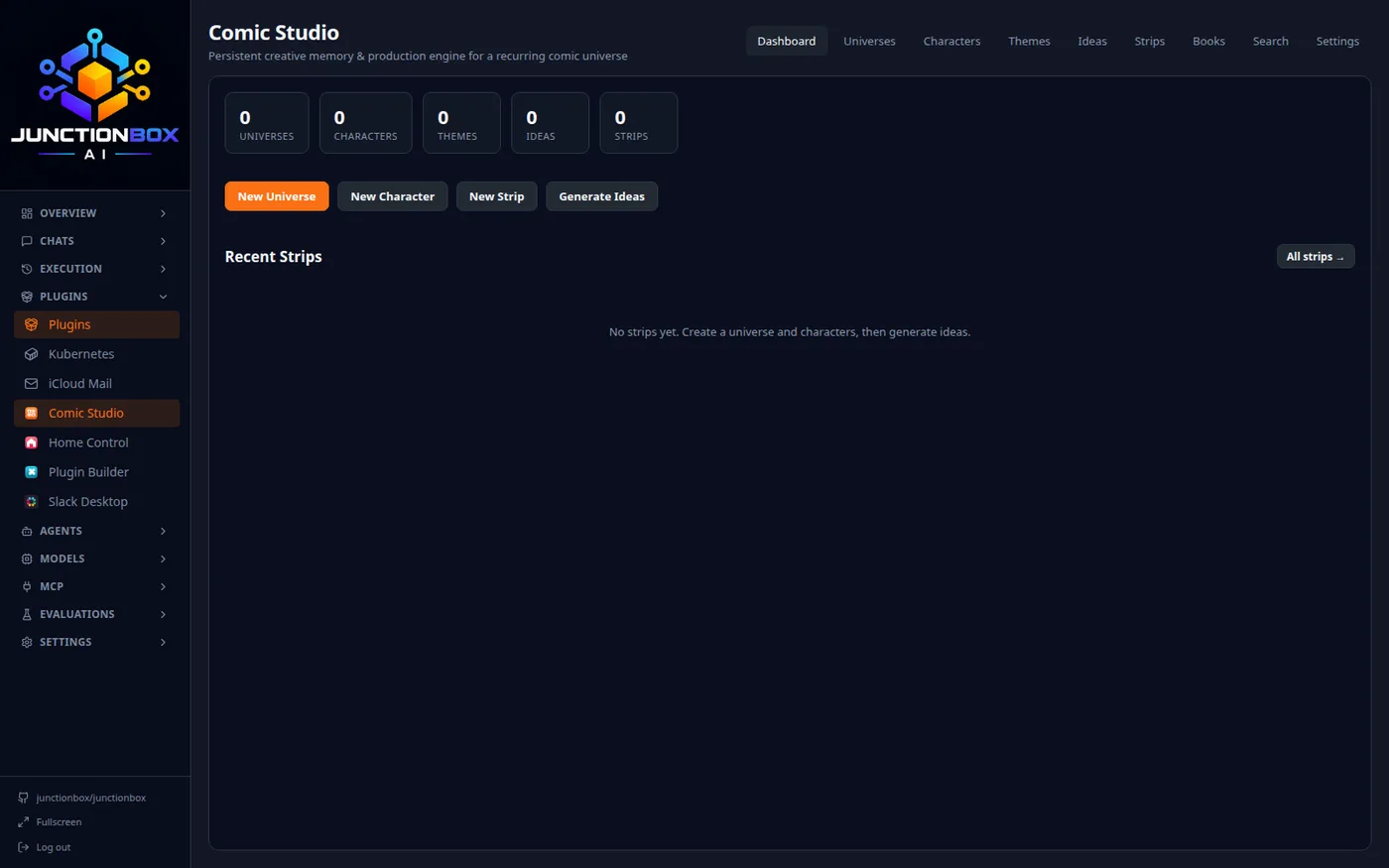
Plugins are self-contained packages that extend JunctionBox with entirely new capabilities — their own pages, their own backend, their own agent-facing tools. Install one from a .zip, and it gets its own place in the sidebar, like Comic Studio below.
Pit Boss Grill
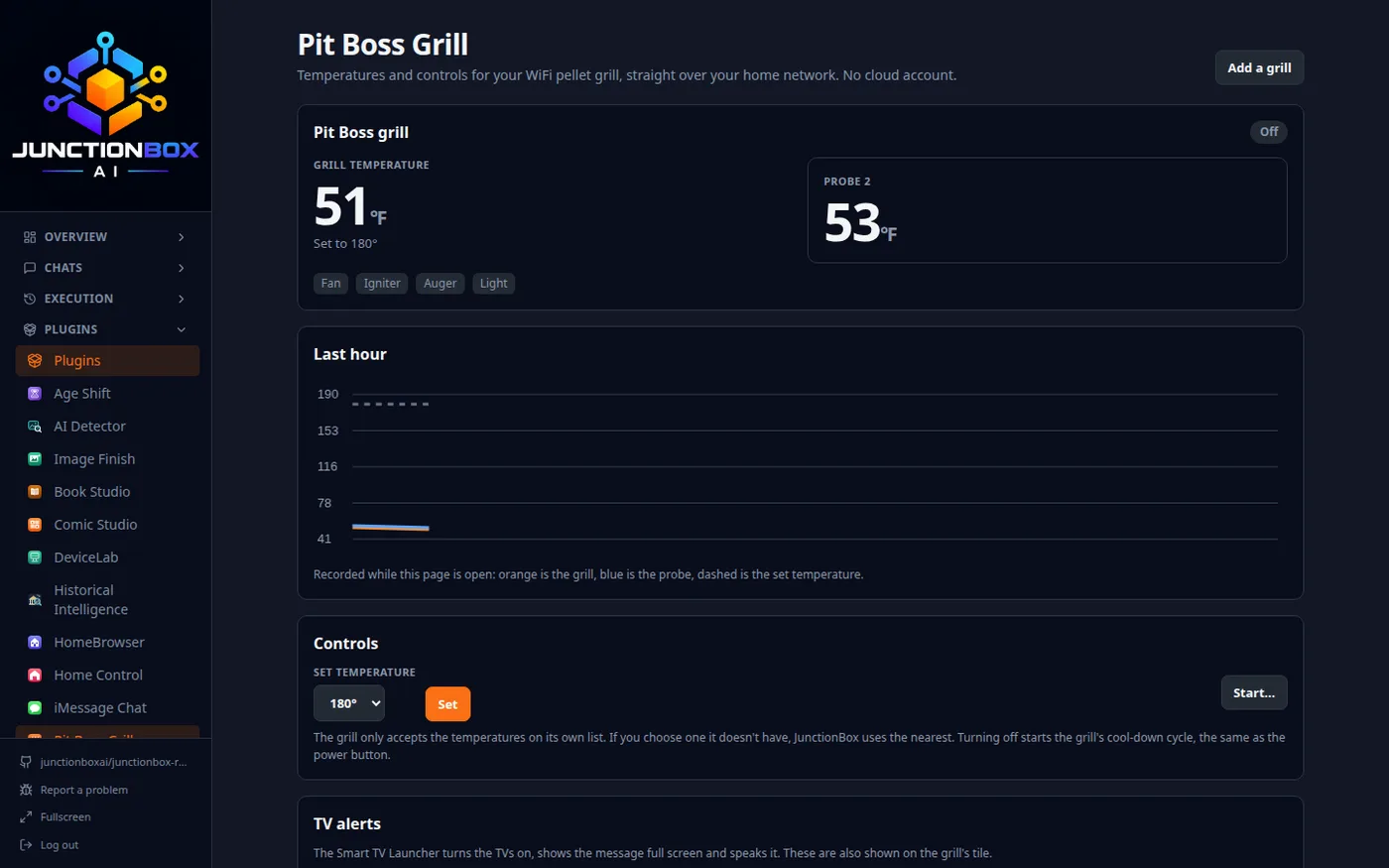
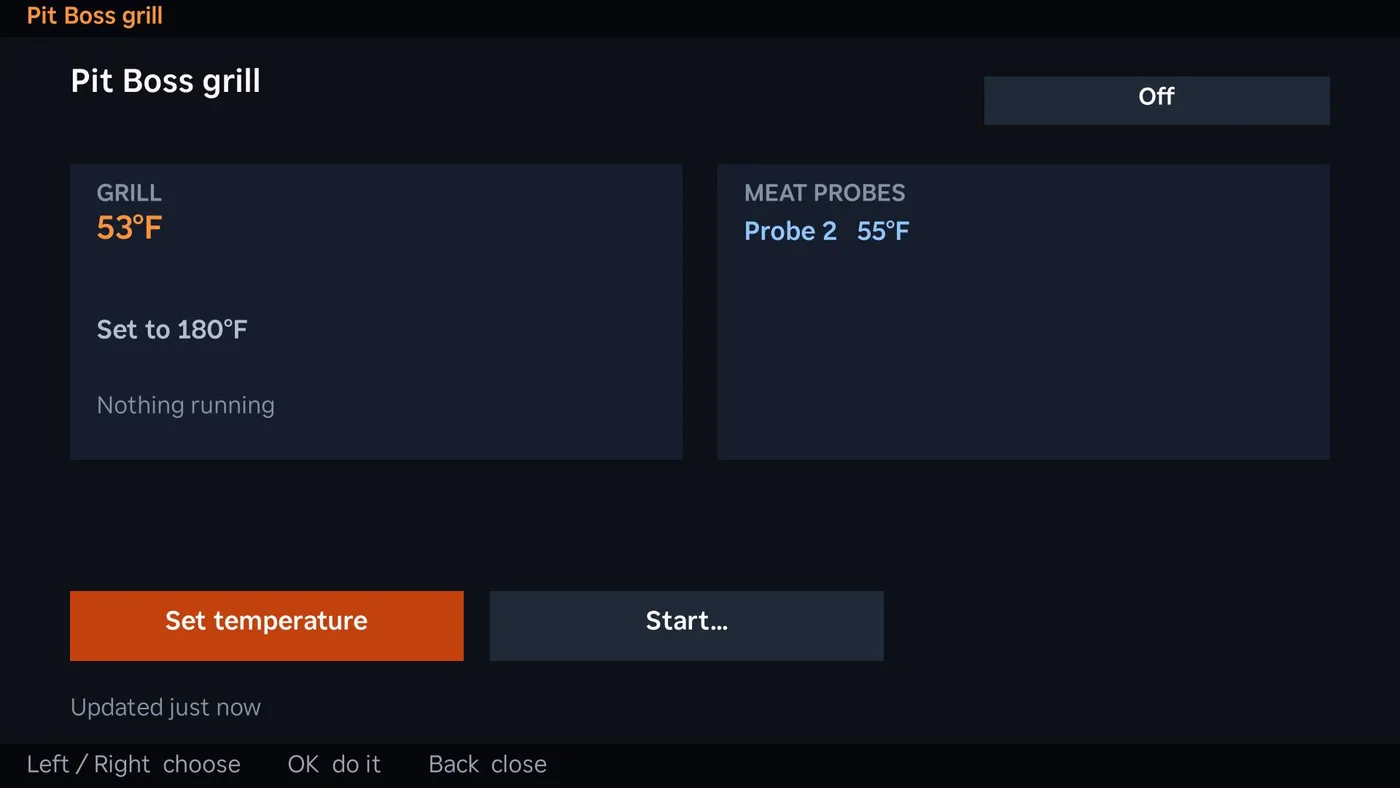
The Pit Boss Grill plugin watches and controls a Pit Boss WiFi pellet grill over your home network, with no cloud account. The page shows the grill and probe temperatures, what the fan, igniter, auger and light are doing, a chart of the last hour, and controls to set the temperature, switch the light and turn the grill off (starting it asks you to confirm someone is at the grill). TV alerts below the controls tell your TVs, out loud, when the grill is ready, a probe is done or something is wrong.
The same readings are on your TV, on the Grill tile of the JunctionBox screen:
Smart TV Launcher: your Roku and Google TV home screen
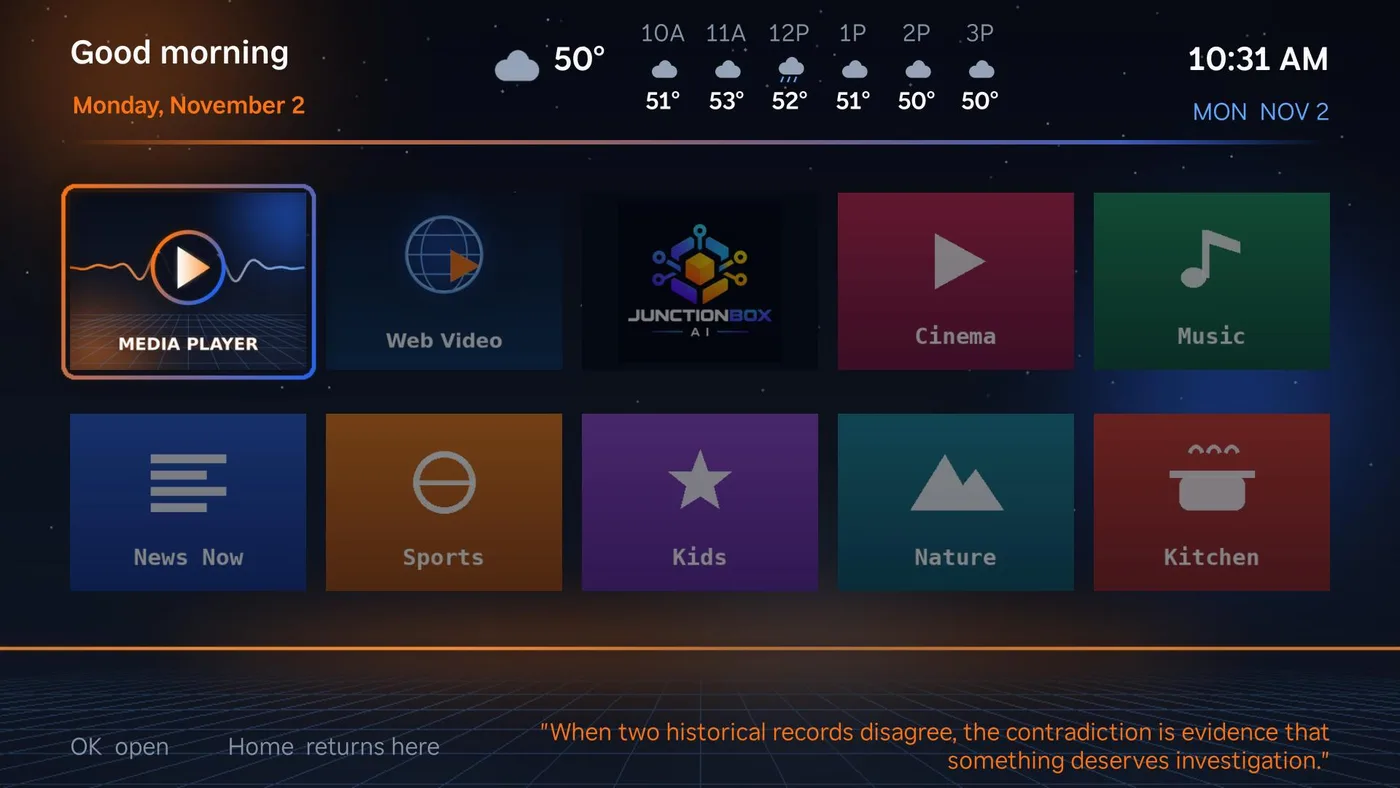
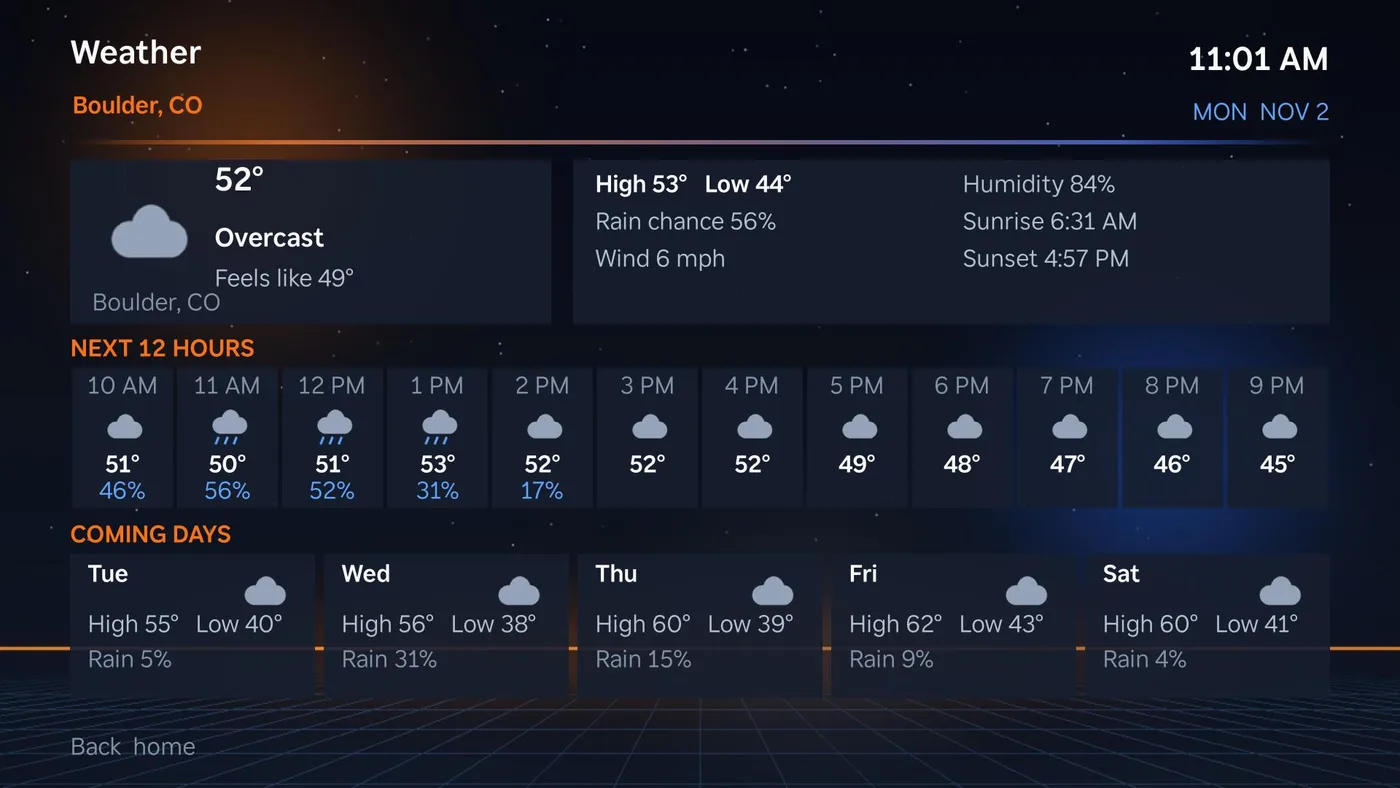
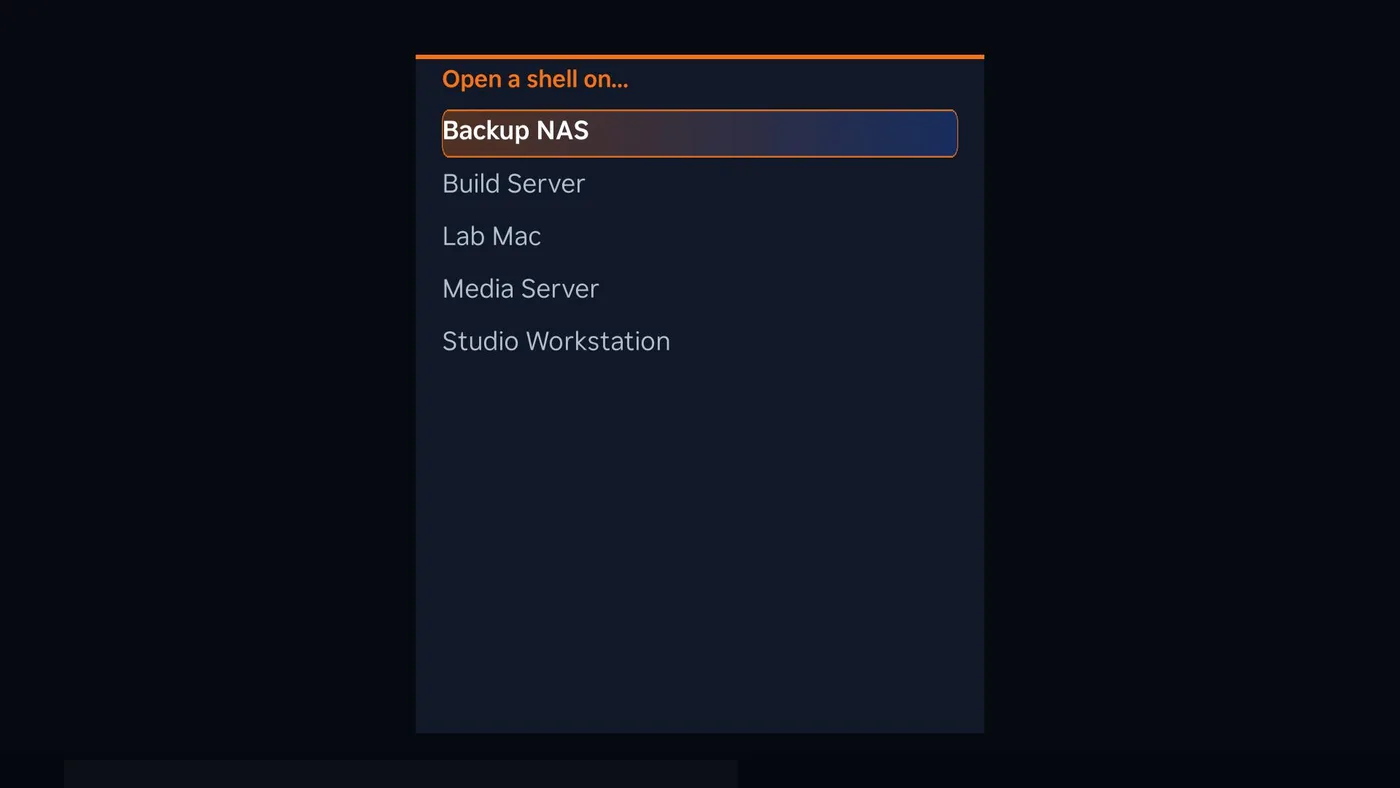
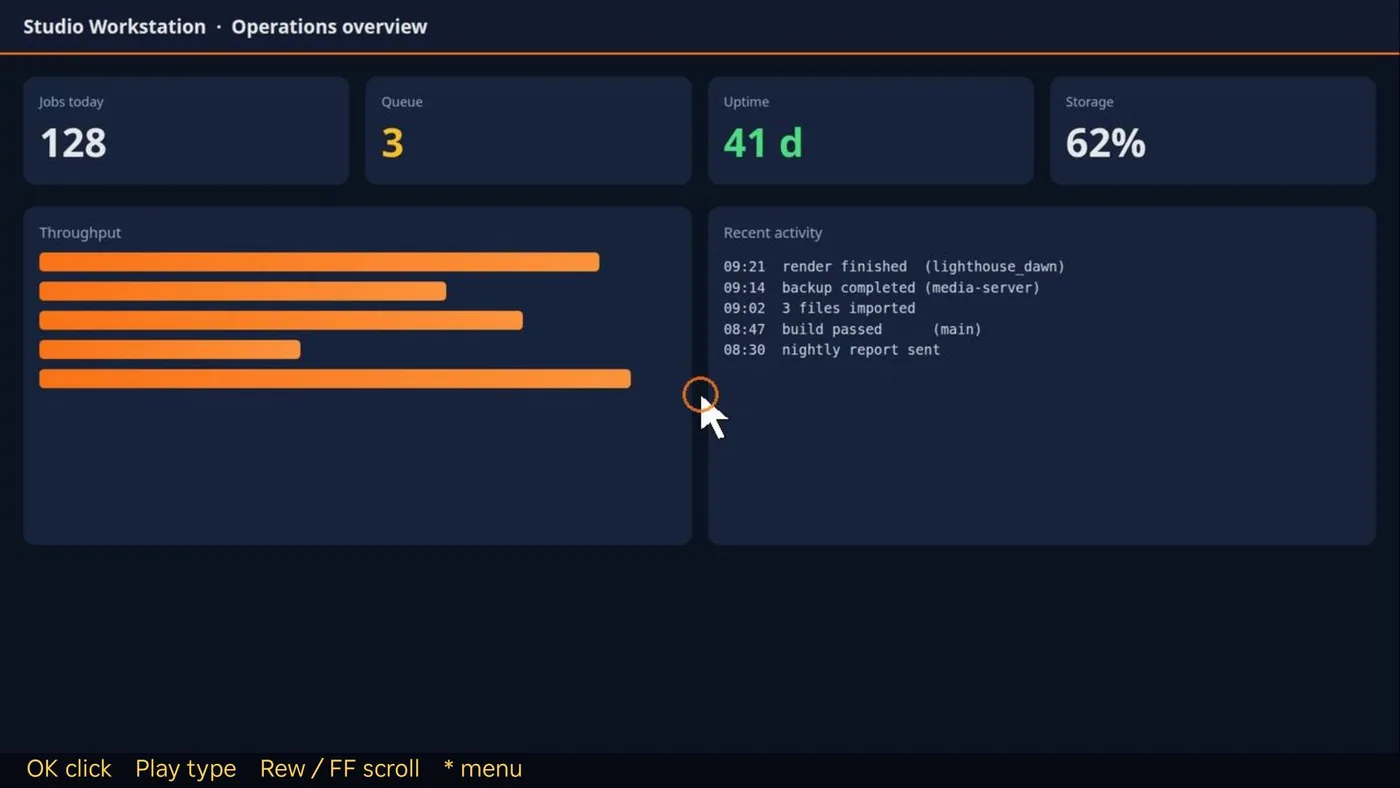
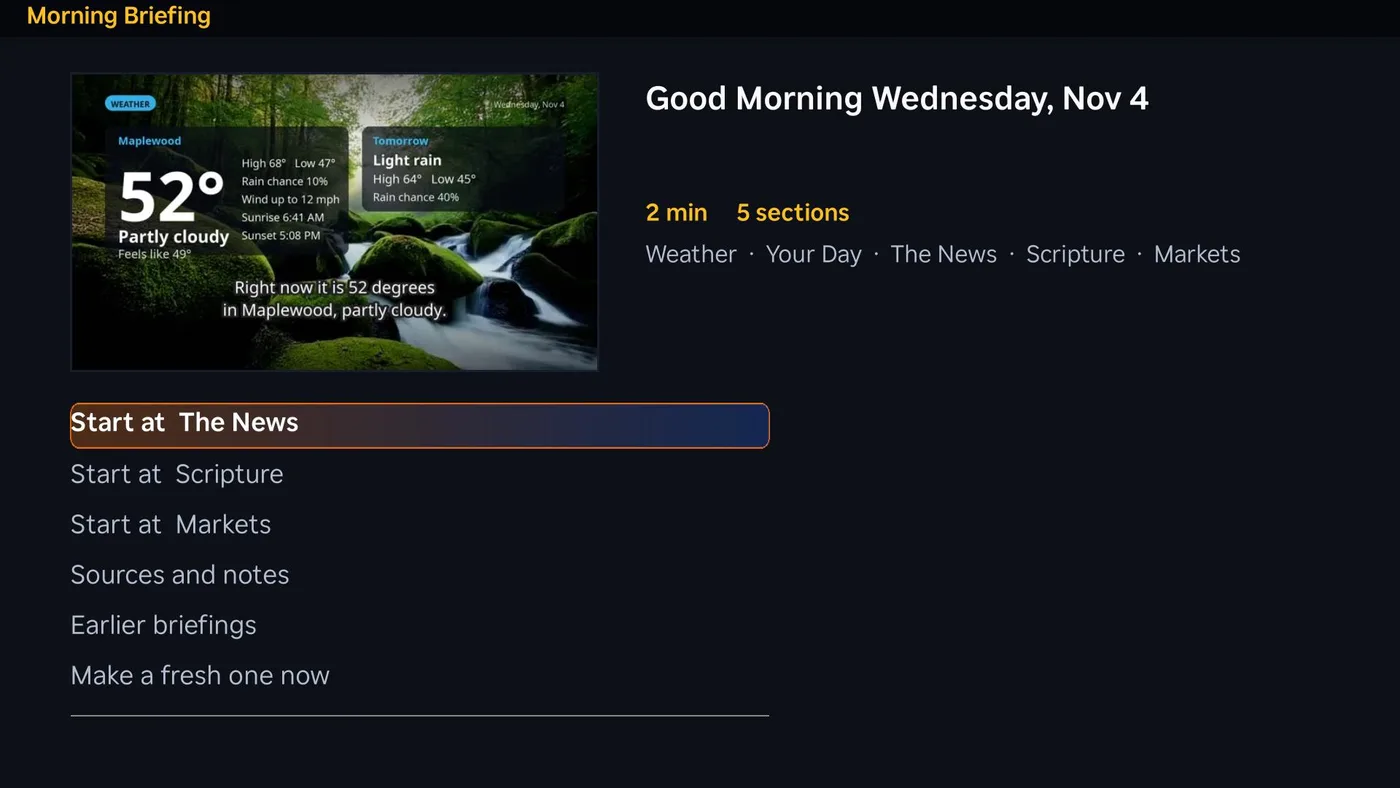
The Smart TV Launcher plugin gives your Roku and Google TV sets a custom home screen, with your streaming apps, the weather and a row of JunctionBox controls, plus a narrated Morning Briefing every day. These pictures are the real launcher on a TV, showing made-up demo data. SMART_TV_LAUNCHER.md has every step and key; USER_GUIDE.md has the everyday how-to.
Where it runs. JunctionBox runs on Linux, macOS and Windows (and can manage Windows, Linux and macOS machines as boxes). The Smart TV Launcher's bridge runs on that same computer, and the launcher itself runs on Roku TVs and boxes and on Google TV / Android TV sets.
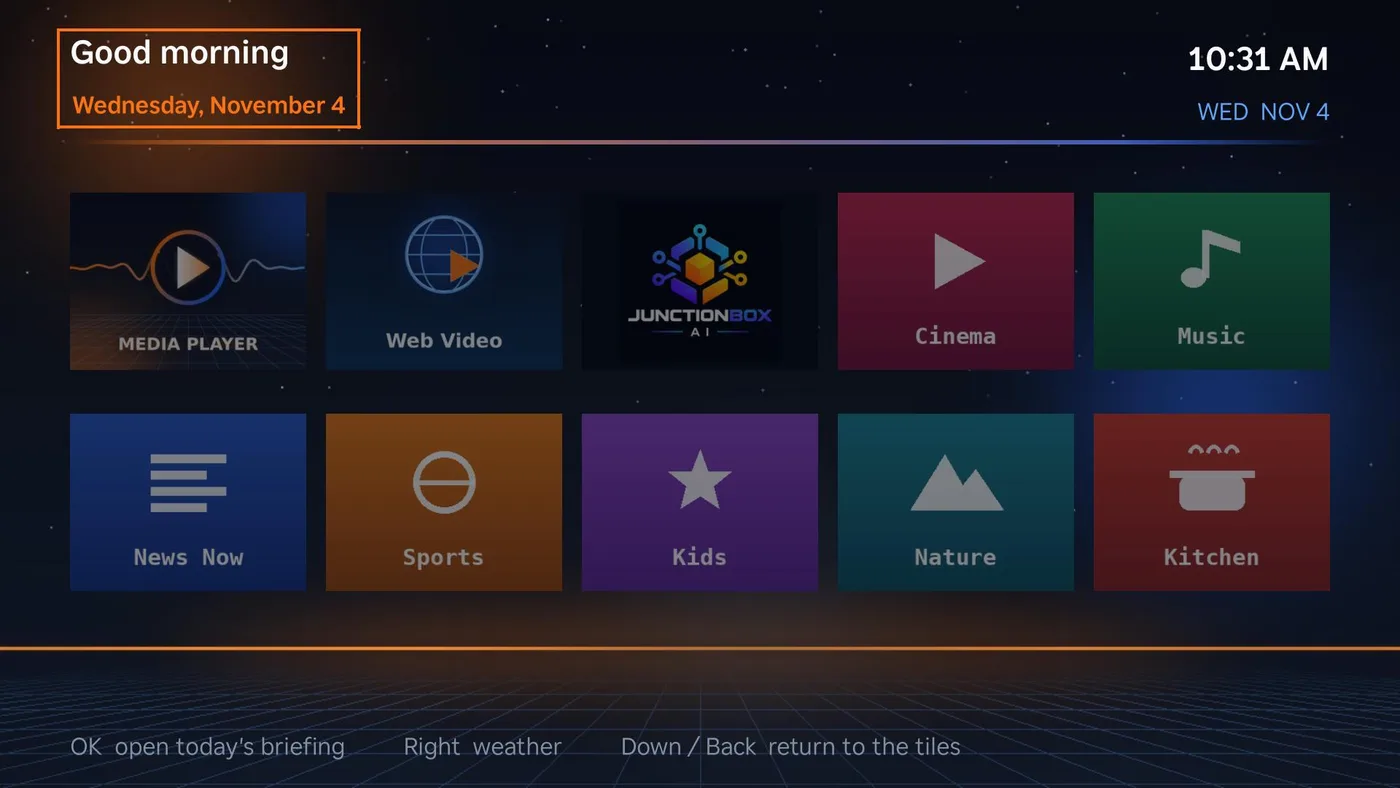
The home screen: your apps as tiles, the weather and the time. The Morning Briefing has no tile; it plays by itself the first time each TV is turned on each day, and afterwards opens from the "Good morning" heading at the top (press Up, then OK).
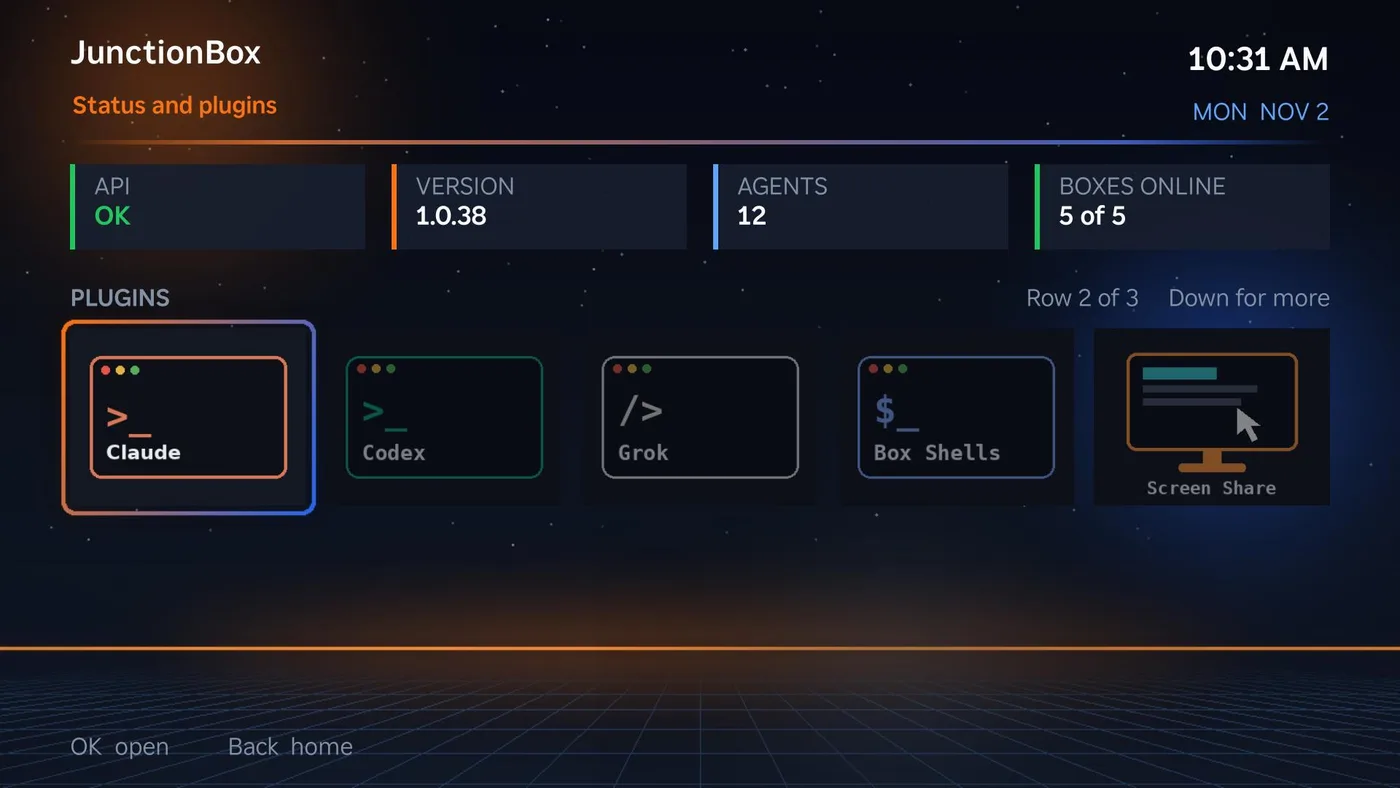
The JunctionBox screen lists the plugins you have installed, a row of five at a time.
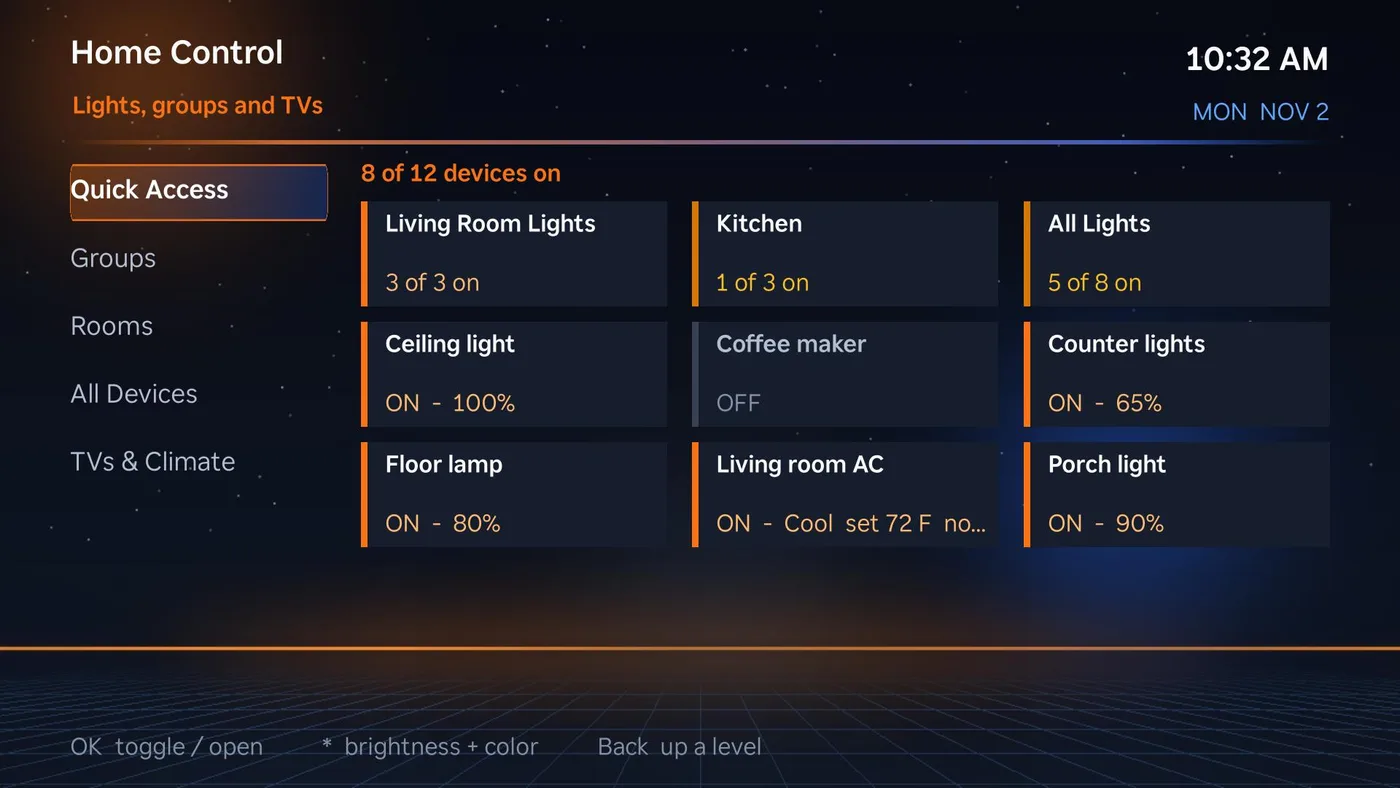
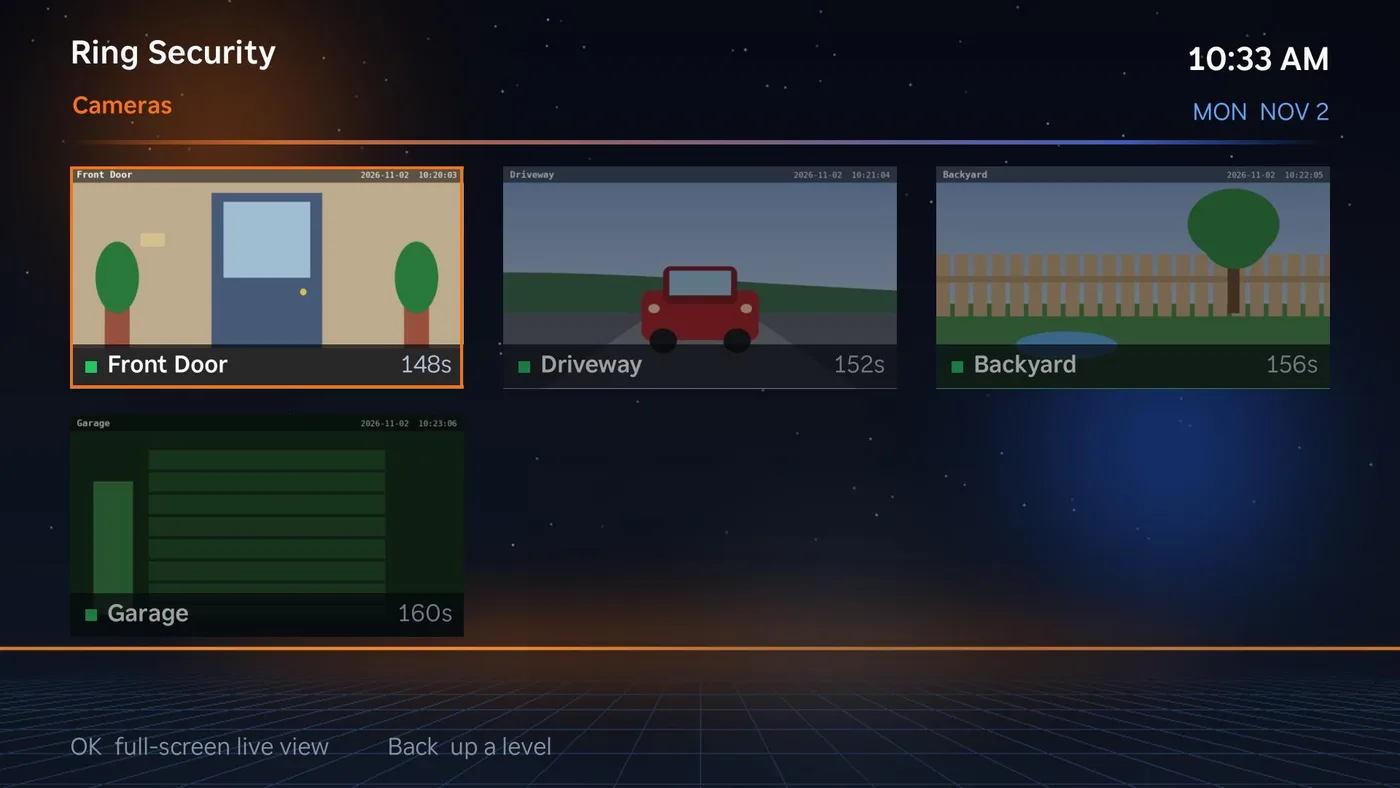
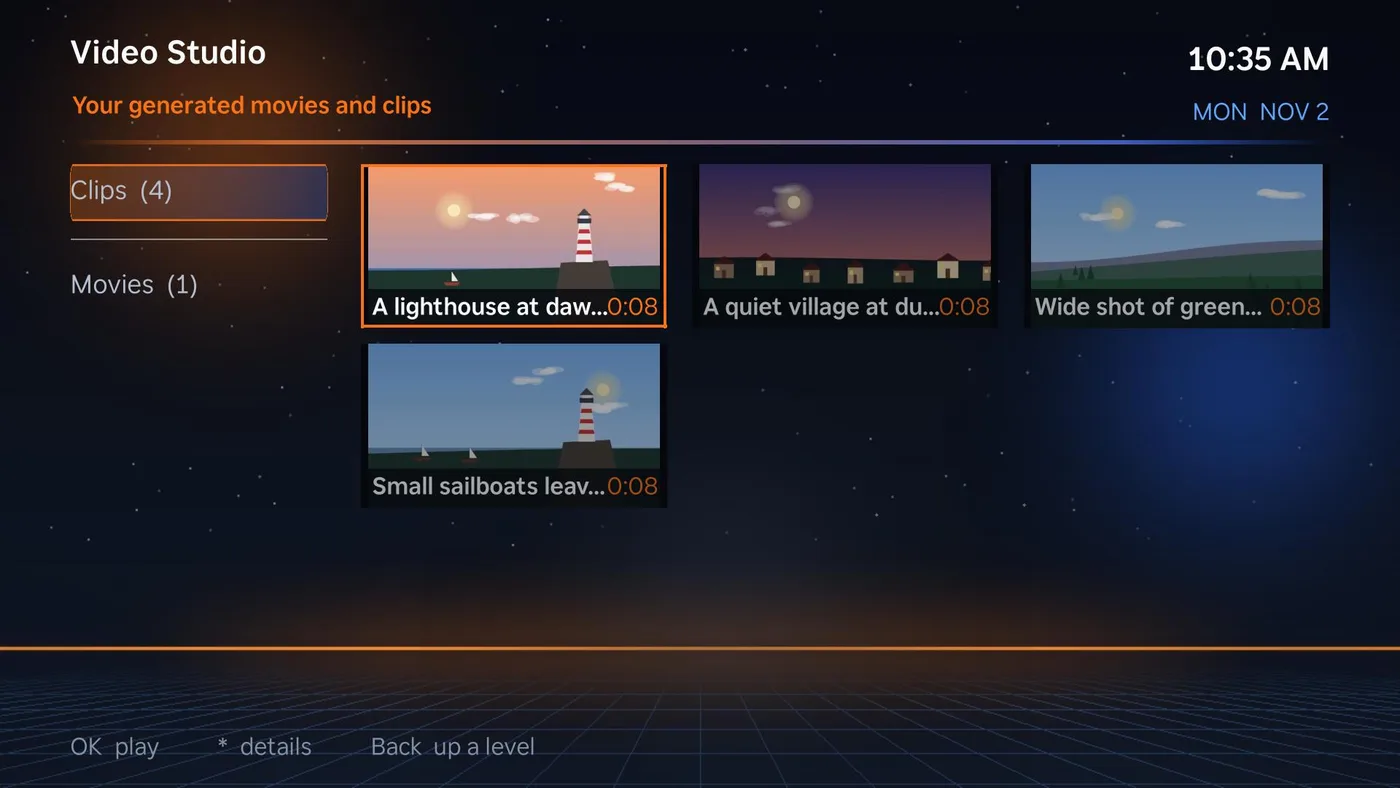
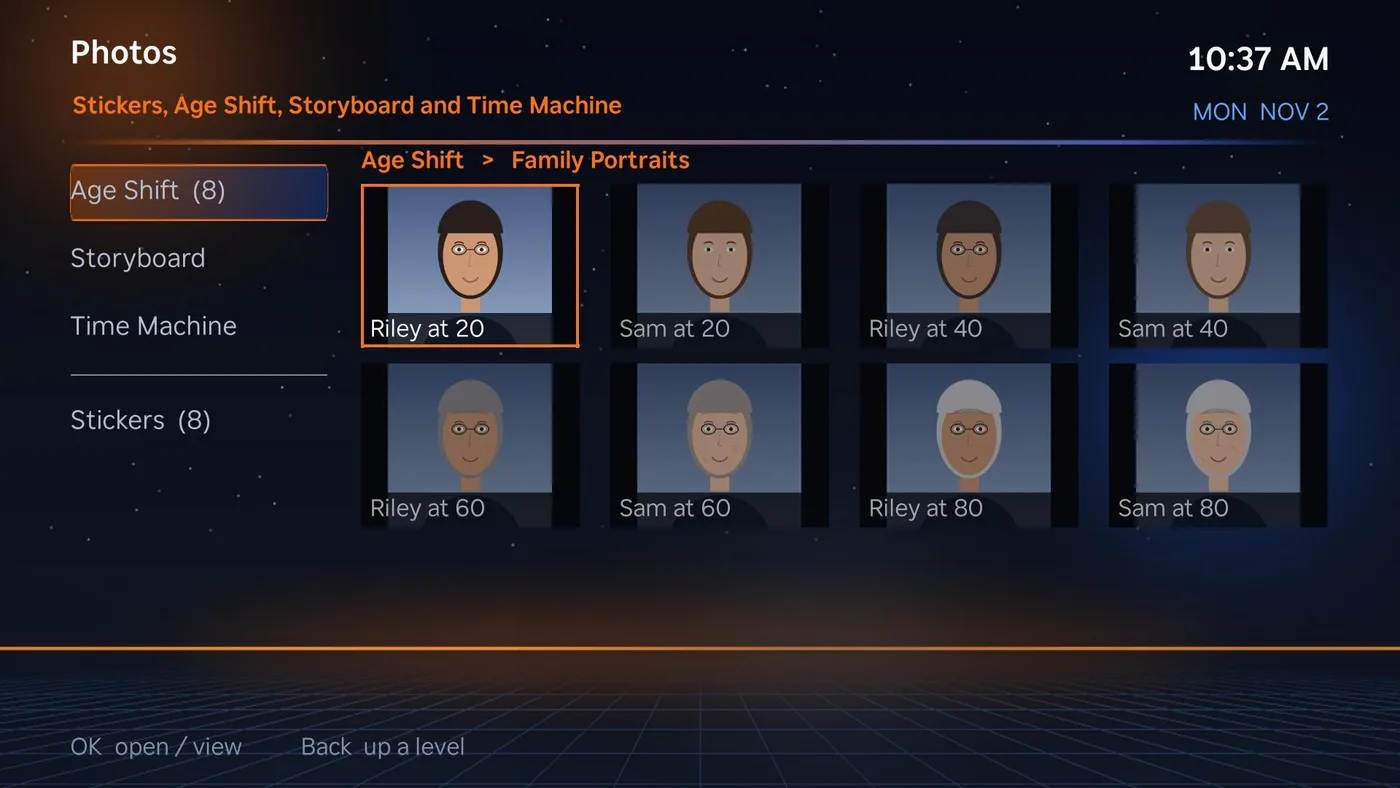
Lights and air conditioning (Home Control), your Ring cameras, generated videos and photos:
 |  |
 |  |
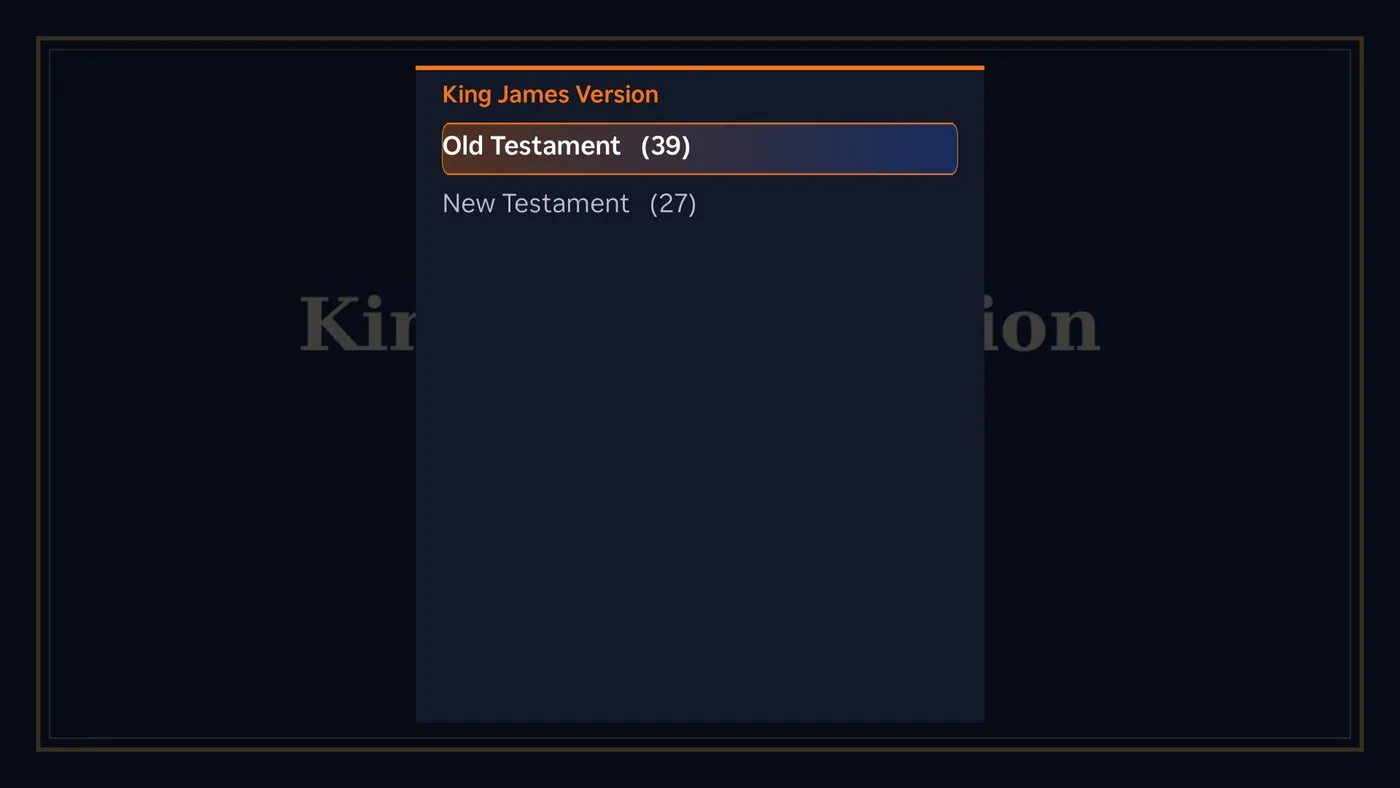
Books and Bibles, with a contents list, chapters and study guides, and Web Video, which plays a web page's video in the TV's own player:
 |  |
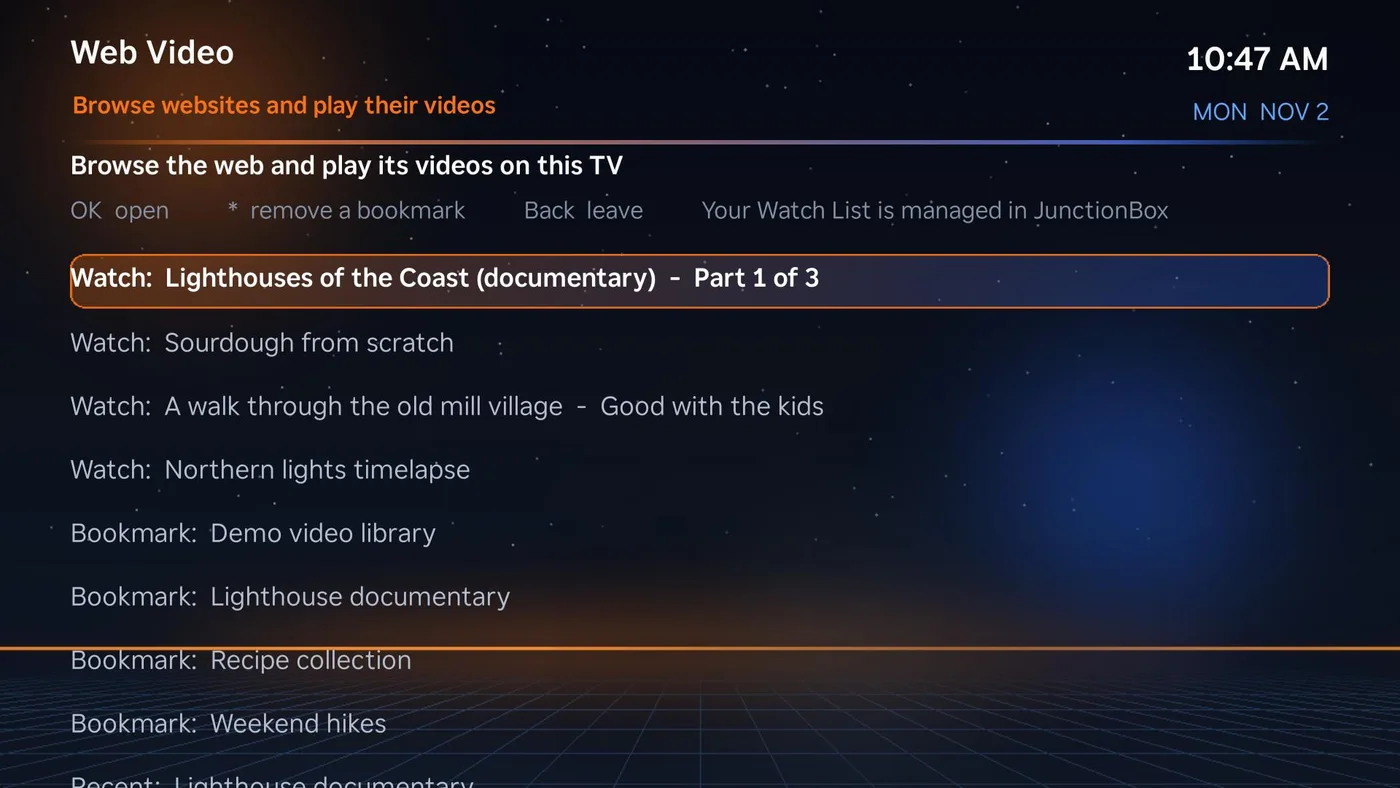 |  |
Coding-agent terminals (behind a PIN), a shell on any of your boxes, and your boxes' screens:
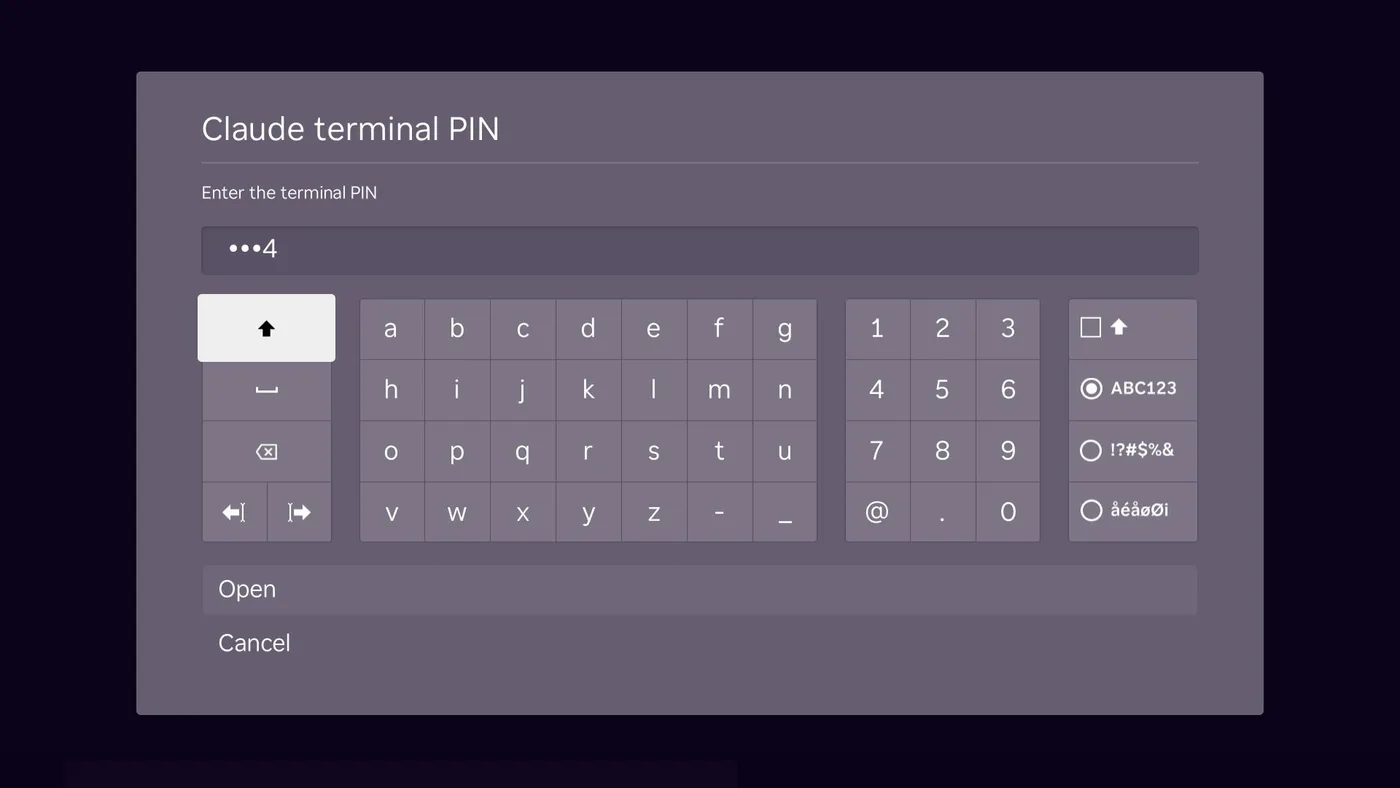 | 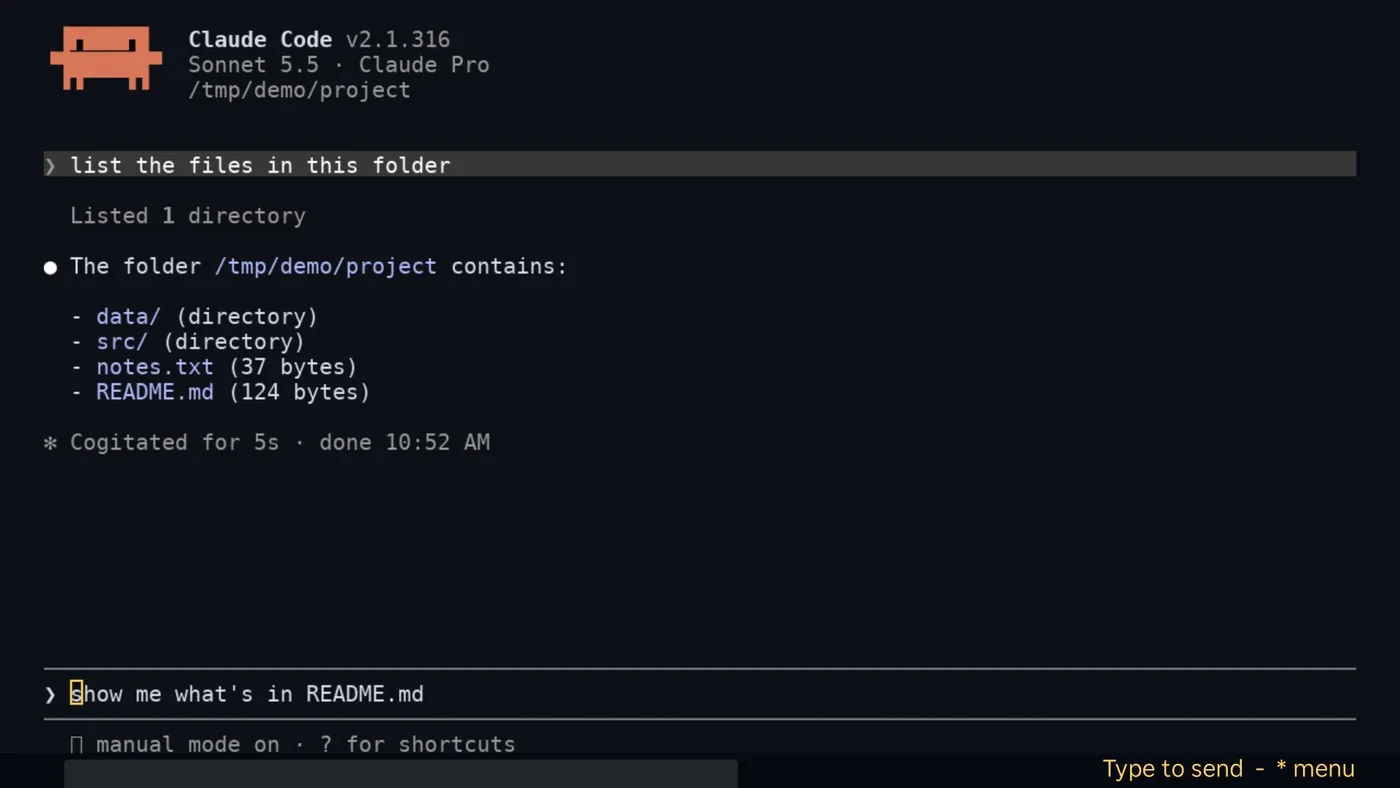 |
 |  |
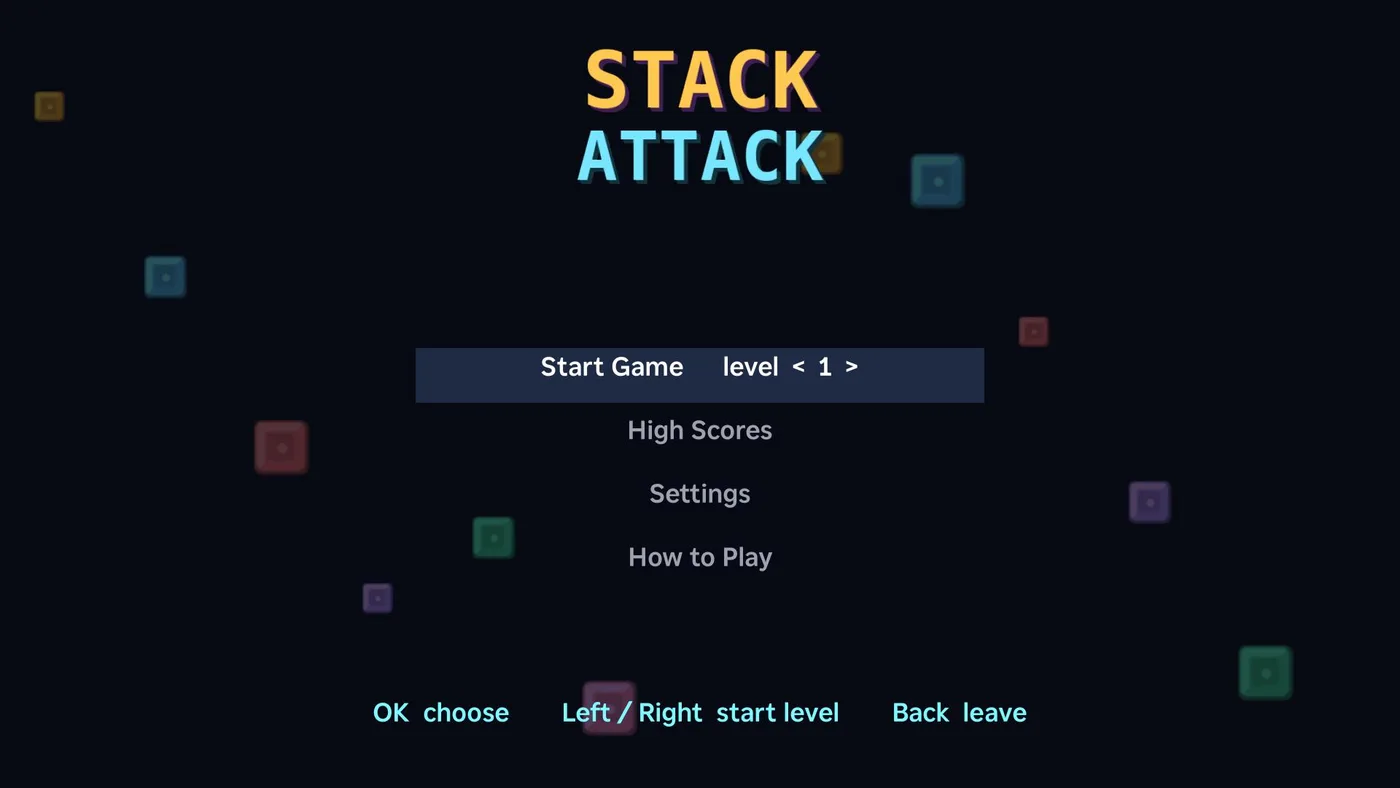
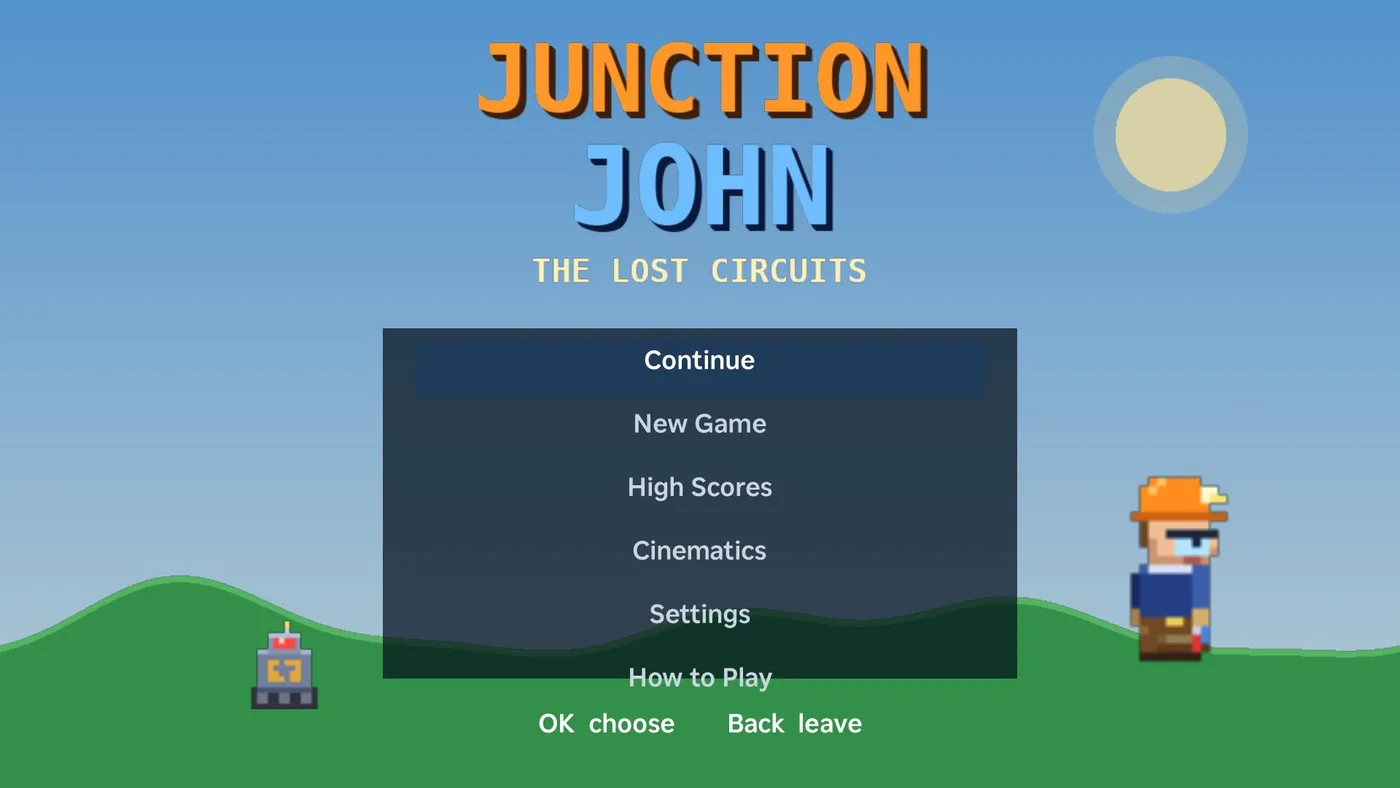
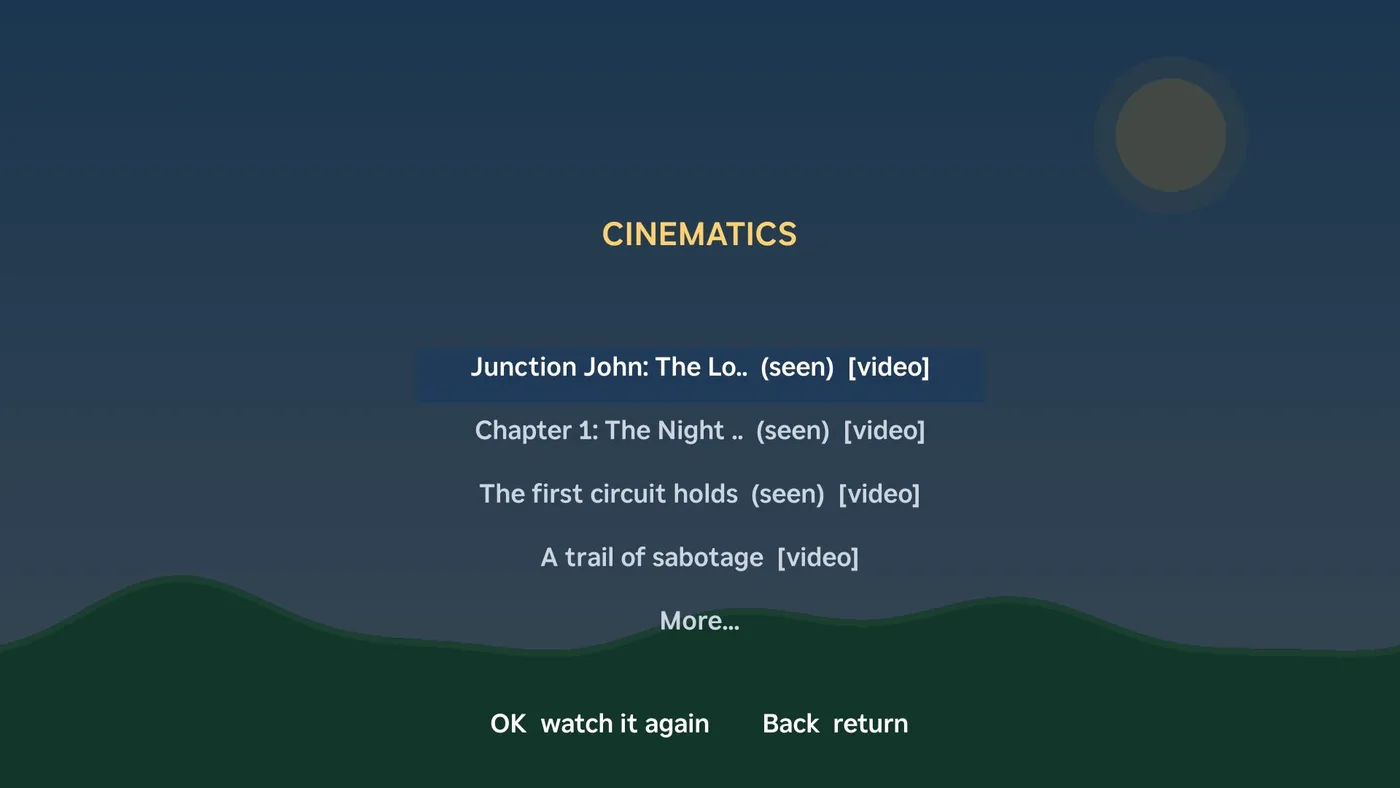
Games and the grill. The Games tile on the JunctionBox screen opens a row of four free arcade games (Tap Takeover, Stack Attack, Pacific Fury and Junction John: The Lost Circuits). Each has its own menu, and the whole house shares one top ten per game. Junction John is a story game with narrated cinematics you can watch again from its Cinematics item. A Grill tile shows a Pit Boss grill's temperatures when the Pit Boss Grill plugin is set up.
 |  |
 |  |
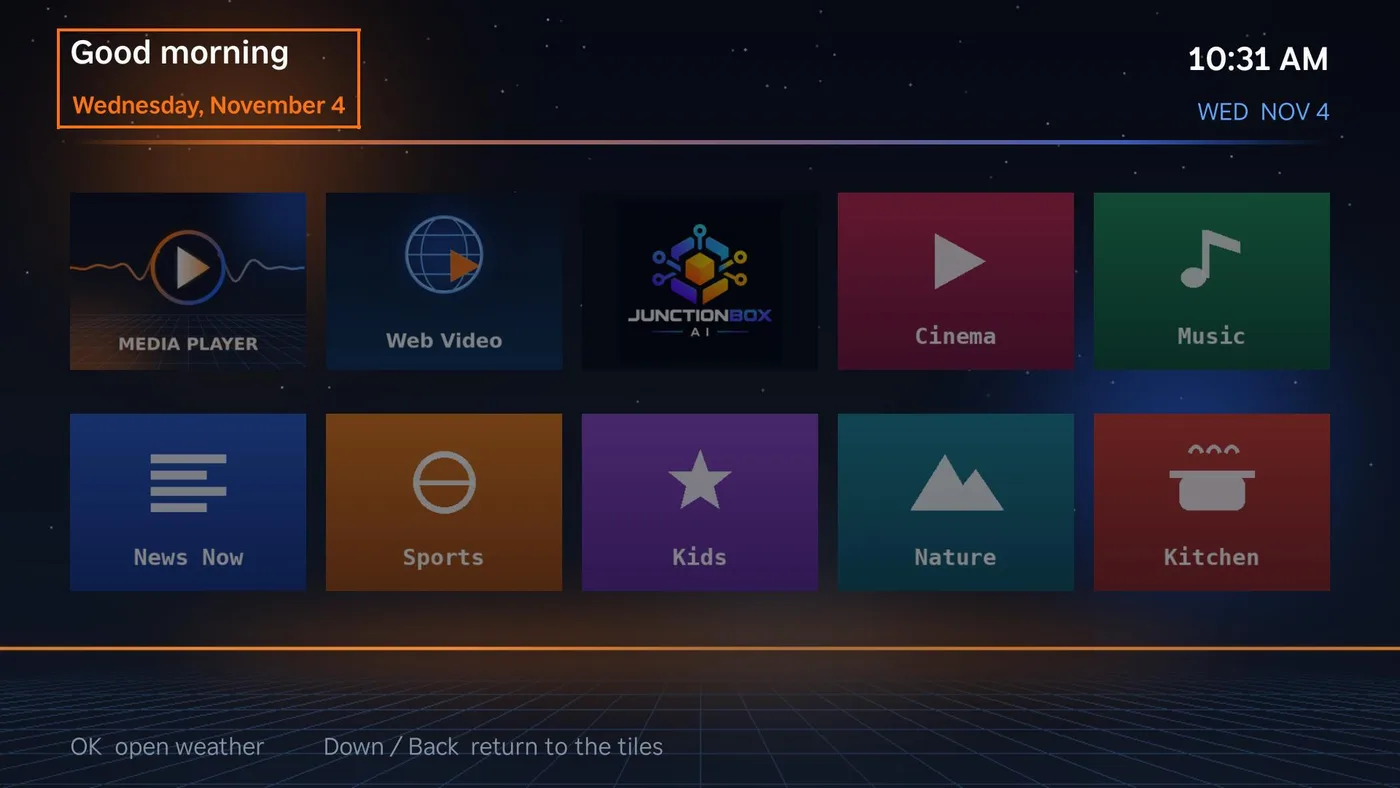
Opening it. Press Up from the tiles to highlight the "Good morning" heading, then OK (Right moves on to the weather):
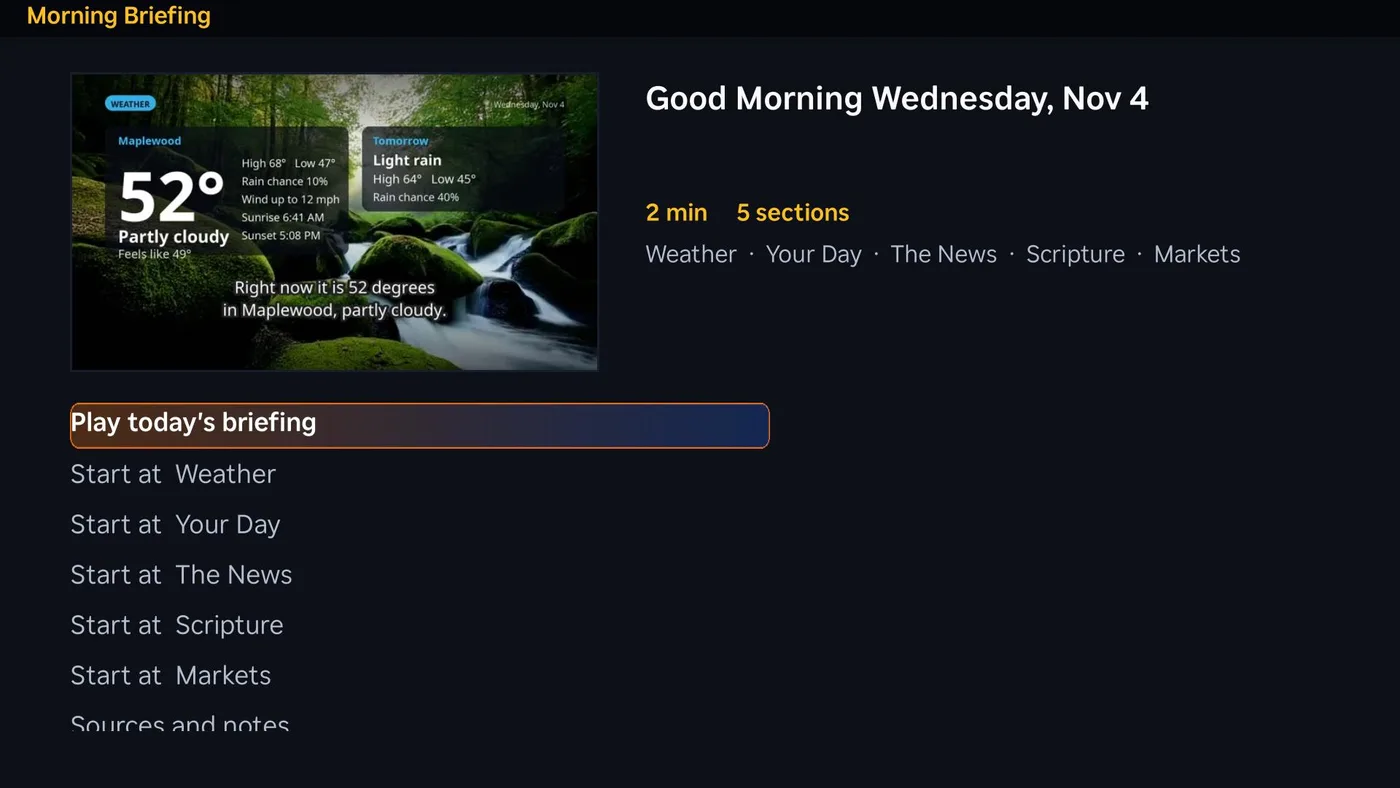
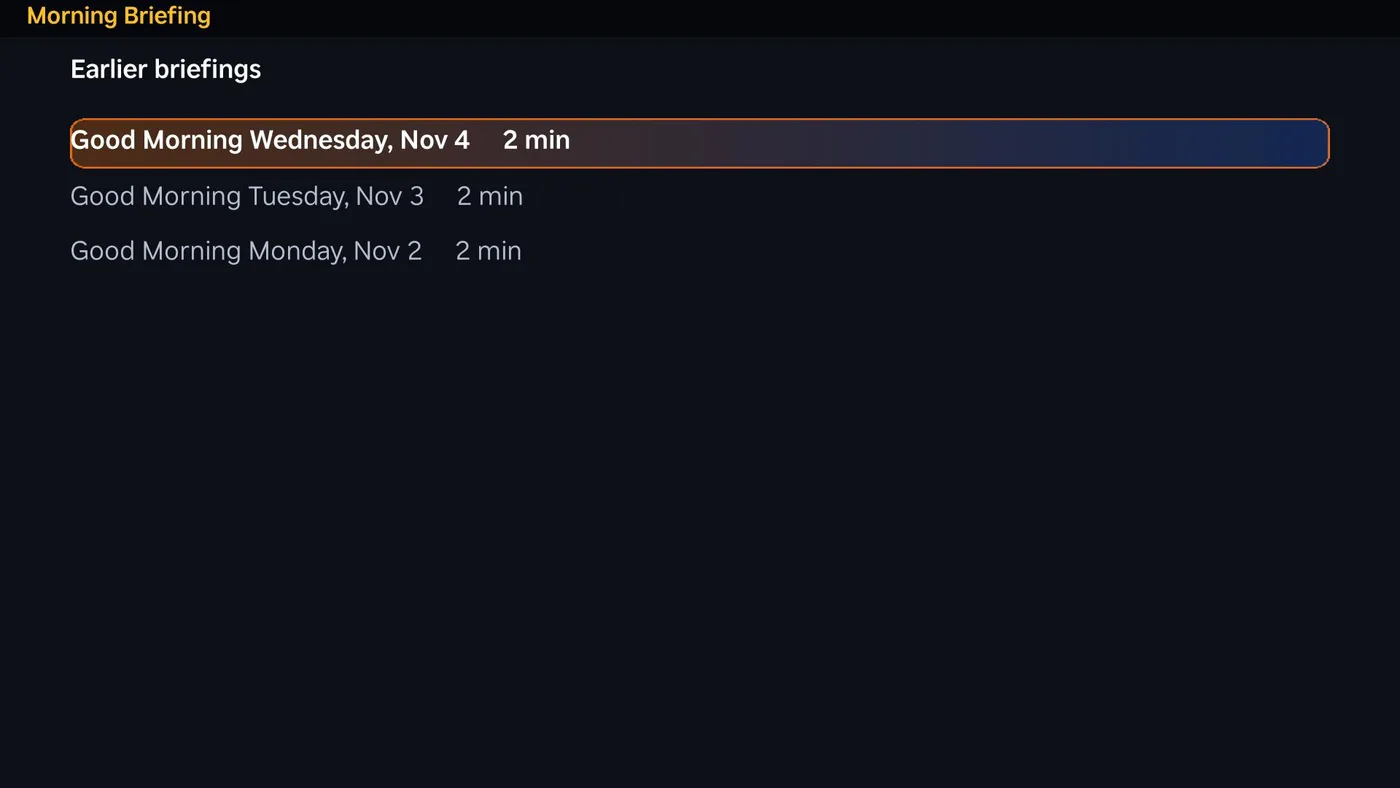
The briefing page shows the day's picture, its length and parts, with Play and a start point for each part:
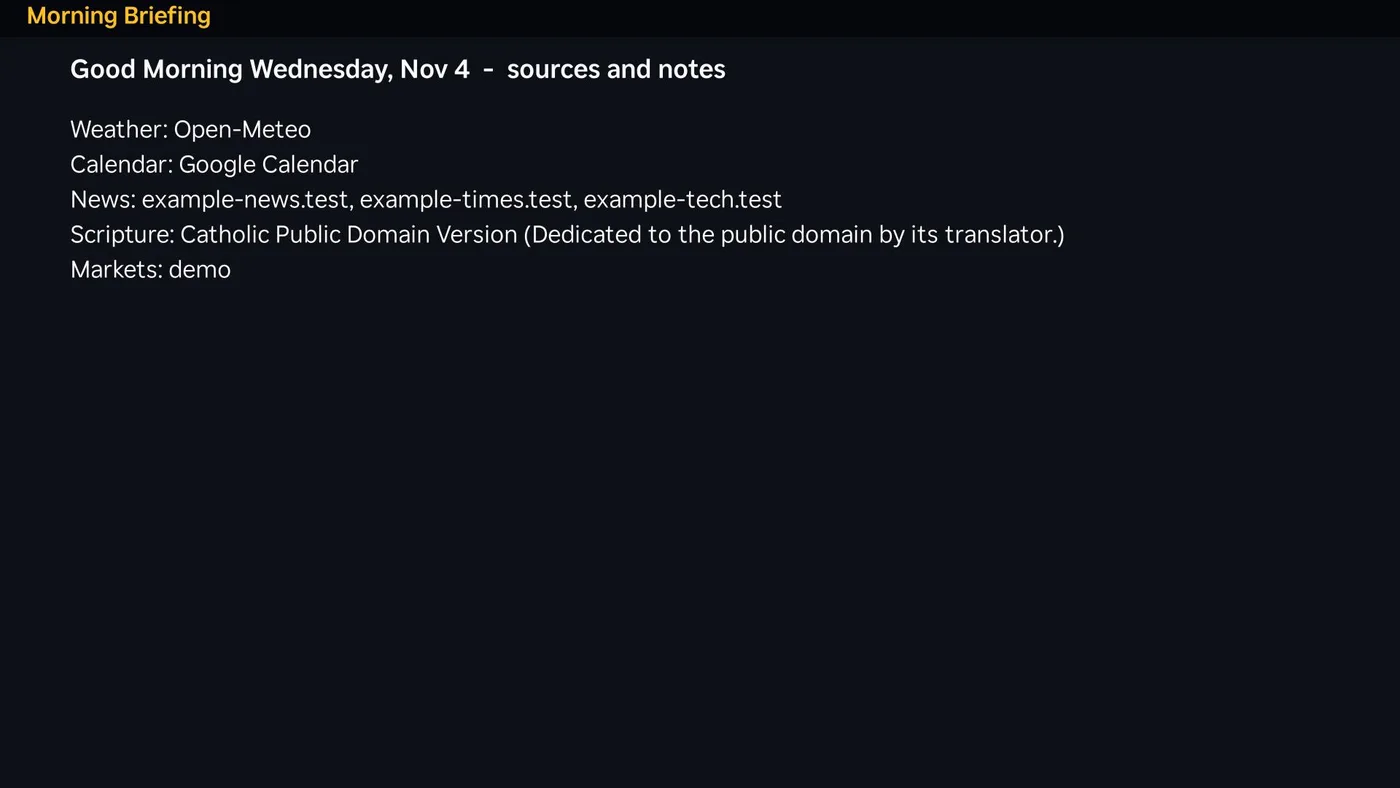 |  |
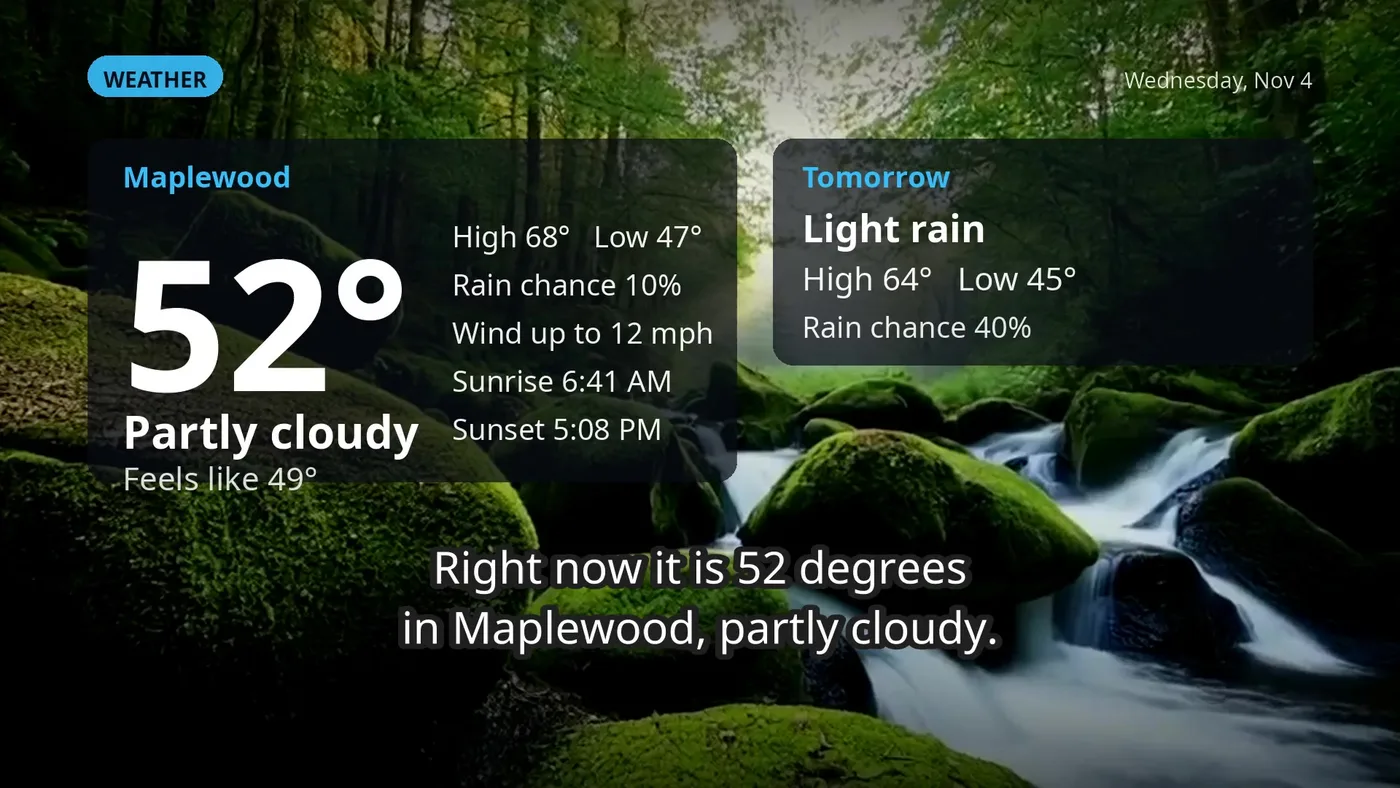
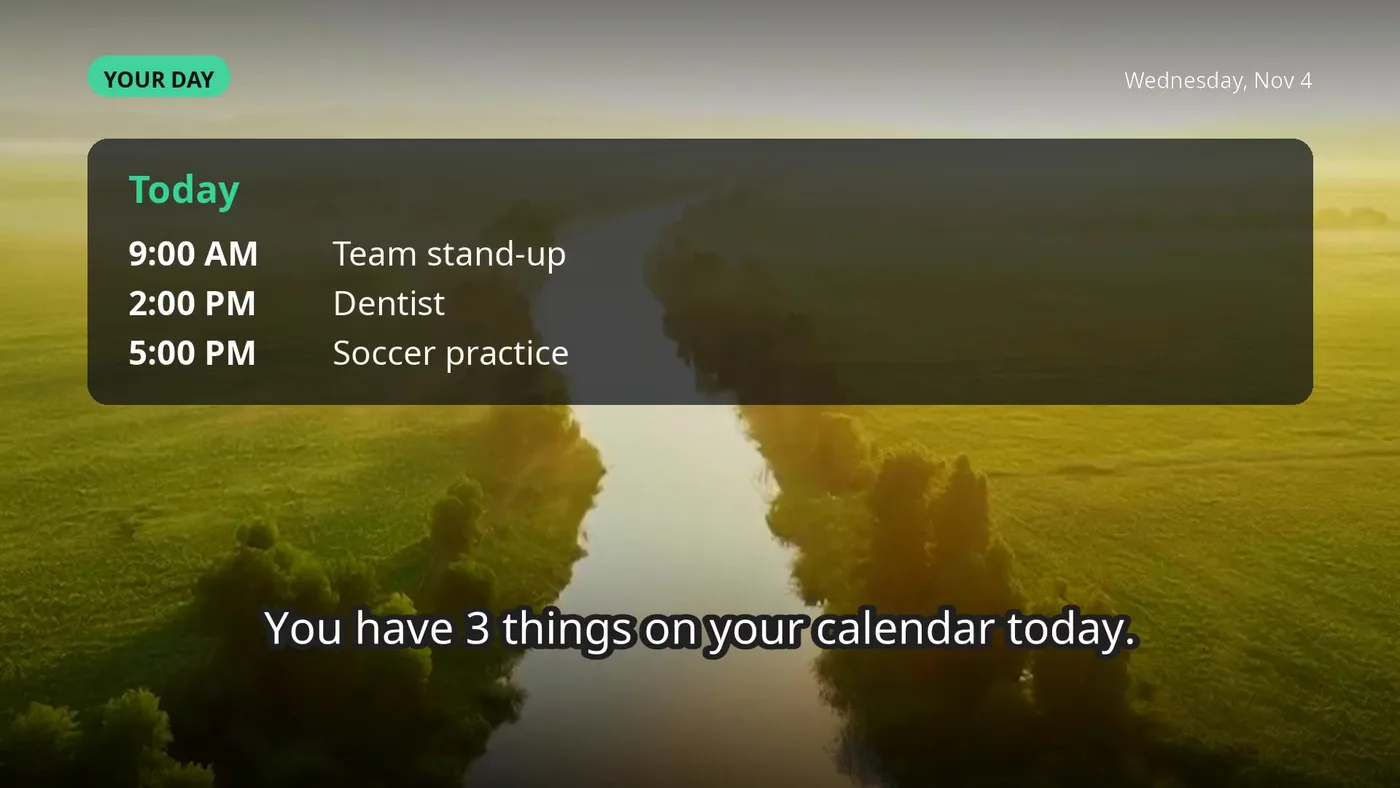
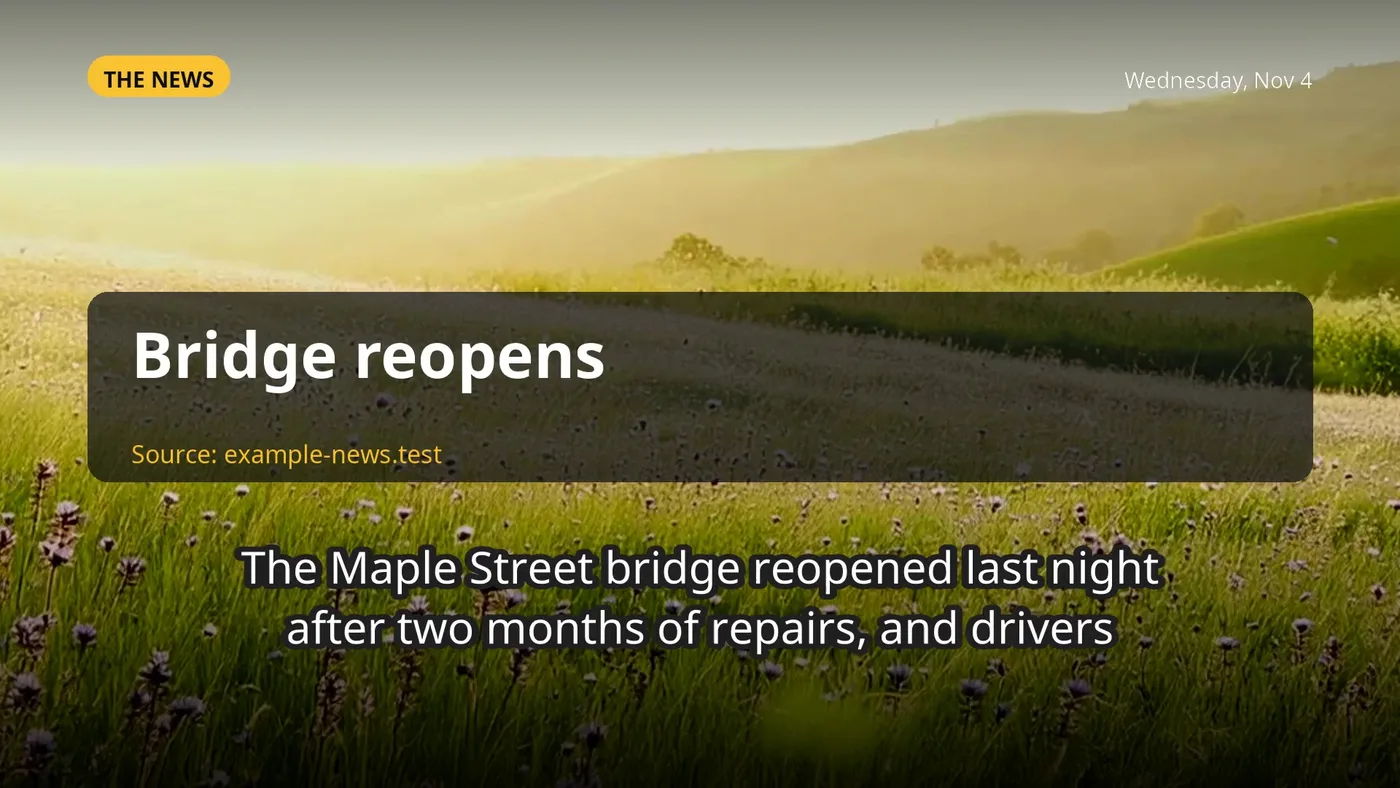
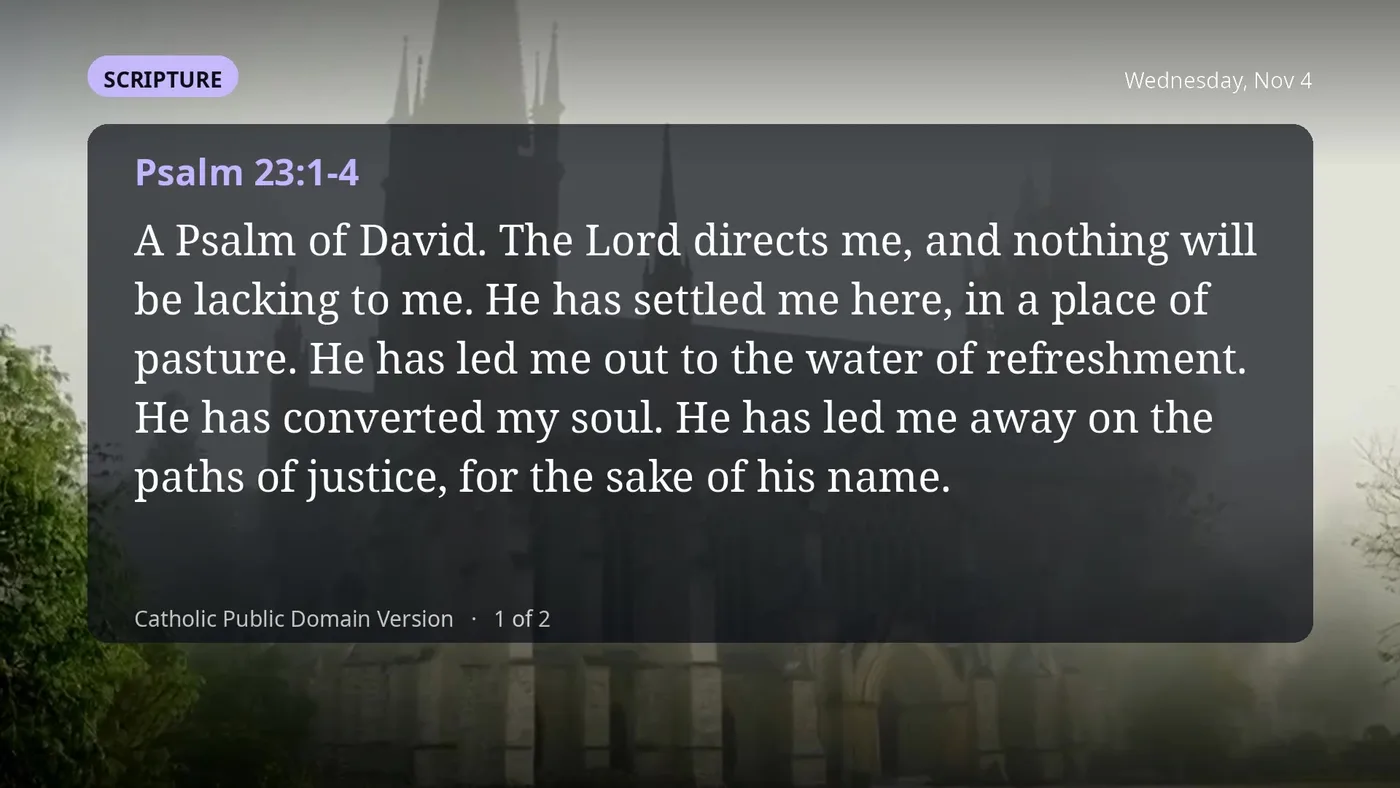
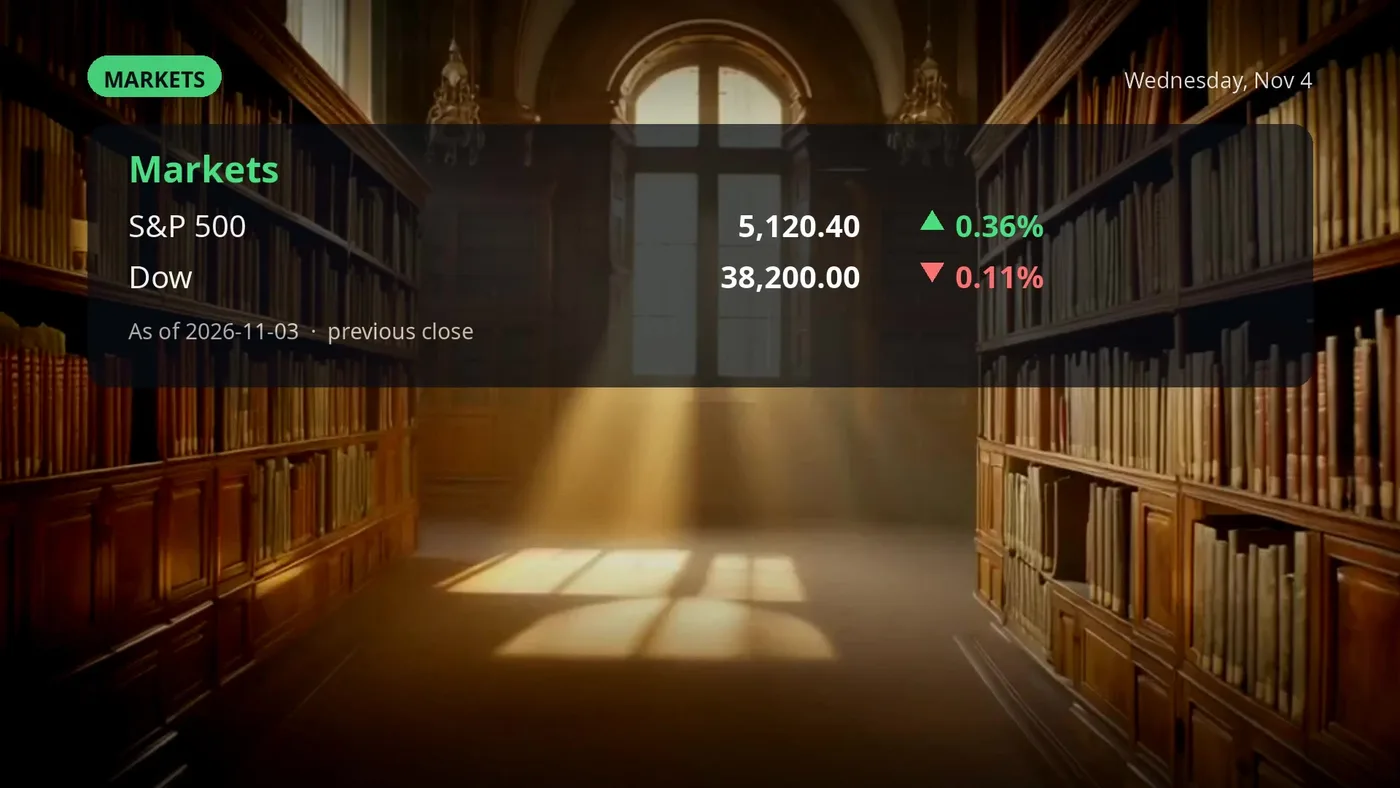
What the video looks like (frames from a made-up demo briefing; the TV's screenshot tool can't capture video, so these come from the video file itself): the title, then weather, your day, the news, scripture, markets and the sources.
 |  |
 |  |
 |  |
The plugin's own page in JunctionBox (a sidebar entry) has numbered cards: TV preparation, the bridge, your TVs, home-screen content, Bibles, terminals and agents, JB Settings and away access, and cards 8 to 15 for the Morning Briefing (schedule, contents, news, scripture, calendar, markets, voice and pictures, and which TVs play it). There is no screenshot of the plugin's own page yet.
Boxes: remote machines and terminals
Boxes are connection records for machines JunctionBox can reach over SSH — this host, seeded automatically, or any remote machine you add. From here you can test connectivity, open a terminal directly, or generate and install an SSH key through a guided flow.
Licensing
Settings shows your current tier, how many active agent slots you're using, and lets you upgrade, manage your subscription, or deactivate the current device — all through a Stripe-hosted flow that never exposes payment details to JunctionBox itself.
System Operations
The one place a privileged-mode agent can ever touch the host system — and even then, nothing runs from a tool call alone. A human reviews the exact script text here and approves it before anything executes, server-side, never inside the agent's own sandbox.
Source: VISUAL_GUIDE.md in the public releases repository.