
Getting started
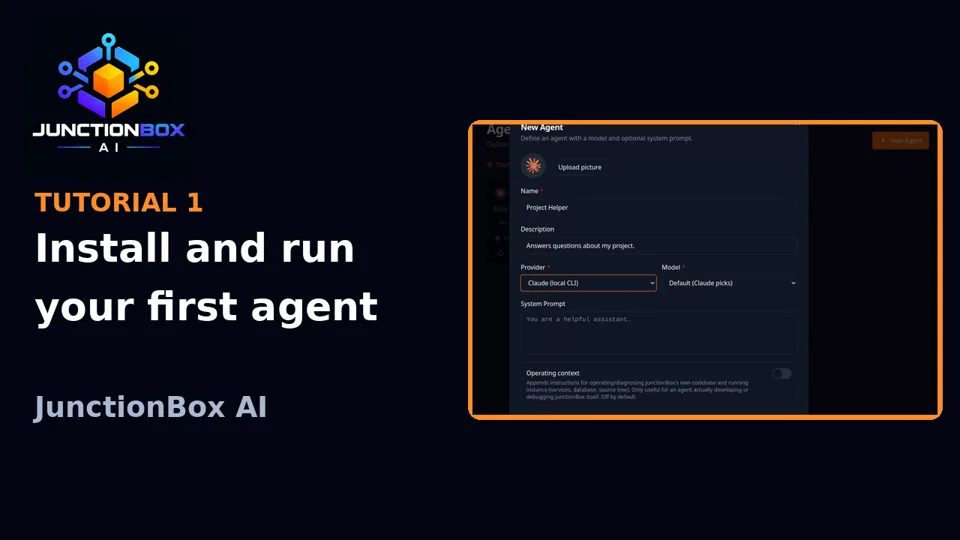
Install JunctionBox, set your password and learn the core ideas: providers, agents, chats, boxes and plugins.
Getting started
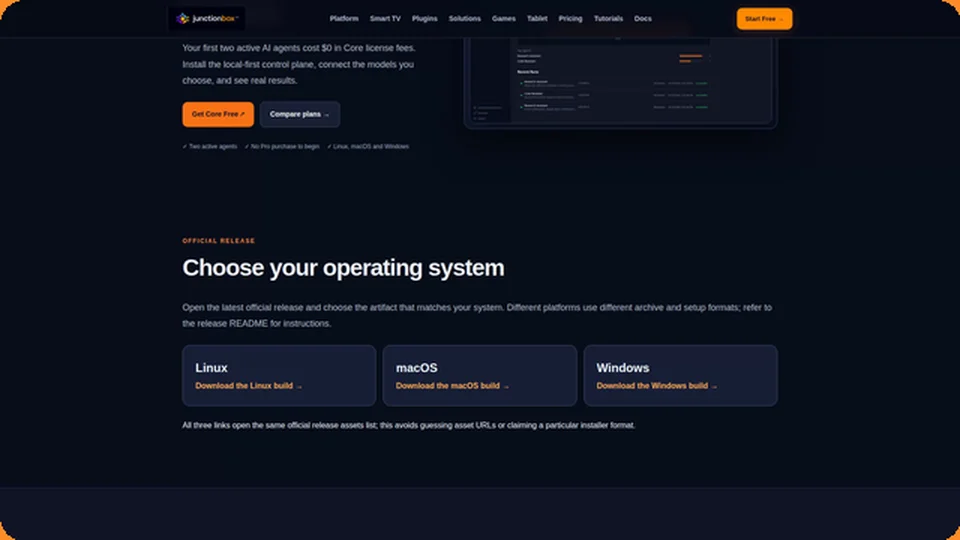
- Install JunctionBox per
deploy/README-release.md(Linux and macOS:install-services.sh; Windows:install-services.ps1, see JunctionBox on Windows below), then openhttp://127.0.0.1:8000on that machine. - On first visit you'll set an access password (8+ characters) and accept the EULA — nothing else about JunctionBox works until it's done. This also works through the HTTPS proxy below, from any device on your LAN, so set a real password promptly after install.
- Log in with that password going forward. There's no "forgot password" flow — if you lose it, you'd need direct access to the machine to reset it (see Administration below).
- You'll land on the Dashboard: a summary of agents, providers, MCP tools, and recent activity, with a 3-step getting-started checklist until your first run exists.
- A JunctionBox Support agent is already there, auto-created — ask it how to use JunctionBox, or whether core services are running, at any time. It's protected (can't be deleted or have its prompt edited) and never appears as a delegation target for your other agents.
The next three sections — Providers, Agents, Chat — are the minimum to get a working agent talking to you.
JunctionBox on Windows
JunctionBox runs natively on 64-bit Windows (built for Windows 10, 11 and Server 2019 or newer; tested on Windows Server 2022), with no WSL and no administrator rights. Everything in this guide works the same way, with these differences:
- Install and services.
install-services.ps1copies the programs to%USERPROFILE%\.junctionboxand registers per-user Scheduled Tasks (JunctionBox-junctionbox-api,JunctionBox-junctionboxd, and the optional HTTPS proxy and search). They start when you log in, are restarted if they stop, and run while you are logged in (the same arrangement as the macOS LaunchAgents; they don't run through a full log out). Logs are in%USERPROFILE%\.junctionbox\logs. Restart a service withStop-ScheduledTaskthenStart-ScheduledTask, or from the Settings restart buttons. - Windows Firewall. The first time the HTTPS proxy needs the network, Windows asks whether to allow it: choose Private networks. (If the installer is run as an administrator it adds the rule itself, for private and domain networks only.) A network Windows has marked Public stays blocked.
- No agent sandbox. On Linux and macOS, local agents (Claude Code, Codex, Grok and every agent's
run_command) are confined by the operating system to the folders their permission profile allows. Windows has no equivalent, so there they run with your own Windows account's rights, and JunctionBox's private files in%USERPROFILE%\.junctionboxare not hidden from them. The permission profile still decides what each tool is told it may do. Settings shows this note next to the profile. Prefer agents that run on a remote box, or keep high-risk work on a Linux or macOS machine, if you need real confinement. - Terminals. The web terminal opens PowerShell (or the shell you have) through Windows' own console (ConPTY), and boxes still use your
ssh, which Windows 10 and later include. - Local commands.
run_command(Dev Tools) and System Ops scripts run in PowerShell. System Ops can't ask Windows for administrator rights (there is nosudo), so a privileged step on this PC itself reports that it needs them. - Not available on the Windows computer itself: screen sharing of that PC (add it as a box over SSH with Windows' OpenSSH Server, like any other Windows box), starting and stopping Tailscale's background service and restarting Ollama from JunctionBox (use their tray icons), and the browser-fallback plugin.
- Optional tools the usual way:
winget install Gyan.FFmpeg(ffmpeg),winget install oschwartz10612.Poppler(PDF pages for the TV launcher). Private search (SearXNG) needs Python 3.10 or newer; the installer adds a per-user Python 3.12 if there isn't one.
Core concepts
- Provider: a way of running a model — a cloud API (Anthropic, OpenAI, xAI/Grok), a local CLI subscription login (Claude Code, Codex, Grok), or Ollama (local or remote). You configure providers once; you then choose which one each agent uses when you set it up.
- Agent: a named configuration — which provider/model, a system prompt, a permission profile, optional sandboxing/working directory, and a pile of optional toggles (memory, identity, delegation). You can have as many agent configurations as you like; the Free/Pro tier only limits how many can be active (enabled) at once.
- Run: one execution of an agent against a prompt. Runs are durable — queued in the database and executed by the background daemon (
junctionboxd), so they survive a browser refresh or even a restart of the web server. - Team: a group of agents that can discover and delegate to each other. Outside a shared team, agents don't know about each other at all — this is the only thing that limits agent-to-agent delegation; it has no effect on you running an agent directly.
Source: USER_GUIDE.md in the public releases repository.