
Screen sharing
See and control the desktop of a Mac, Windows or Linux computer from your browser.
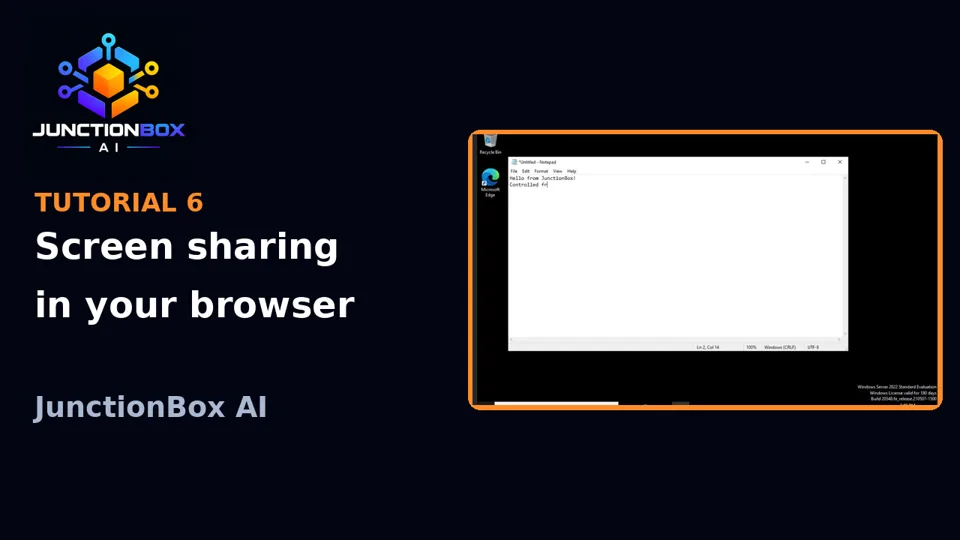
Screen sharing
From a Box's card, click Screen Share for full mouse-and-keyboard remote control of that machine, in its own tab right alongside Chat and Terminal — not just a view, real input. This works for any registered Box, including the machine JunctionBox itself runs on ("Local").
Nothing is installed permanently on the target machine:
- Linux: a VNC server is set up fresh when you open the tab and torn down completely when you close it. Nothing is left running or installed afterward beyond the package itself (installed once, like any other apt/dnf package).
- macOS: no third-party software at all — it's the Mac's own built-in Screen Sharing (the same thing "Remote Management" in System Settings controls), switched on only for the session with a fresh one-time password, and switched off again when you close the tab.
- Windows: a VNC server (TightVNC) is installed automatically the first time you screen-share into a given box — nothing to set up by hand, on either the Windows box or the JunctionBox host. It's left installed afterward (same product decision as Linux), but only ever actually running for the life of a session, same as Linux's VNC server. Unlike Linux/macOS, this needs the target Windows account to have logged into a real session (console or RDP) at least once before Screen Share can find a desktop to attach to — if it hasn't, starting a session will tell you so directly.
A few things worth knowing:
- On a phone or tablet, there's no physical keyboard to type with — a keyboard icon in the screen-share tab opens a tap-to-type input.
- The first time you screen-share into a given Mac, macOS requires the Screen Recording permission to have been granted at least once interactively, at that Mac itself (System Settings → Privacy & Security → Screen Recording) — this can't be done remotely or via SSH by design (Apple's own hardening, so SSH access alone can never silently turn on remote screen viewing). If a session connects but shows a black screen, this is almost always why — go grant it once at the machine and it's a one-time fix per Mac.
- Screen sharing to the local box requires either passwordless
sudoor a stored sudo password on that Box's own connection record (Boxes → Local → Edit) — without one of those, starting a local session will tell you so directly.
Source: USER_GUIDE.md in the public releases repository.