Smart TV overview
What the Smart TV Launcher puts on your Roku, Google TV and Fire TV.
Smart TV Launcher: your TVs (Roku, Google TV and Fire TV)
Smart TV Launcher is a plugin that puts your own home screen on your Roku TVs and boxes and on Google TV / Android TV sets: big tiles for your streaming apps, the weather, a quote, and a JunctionBox screen with your lights, cameras, videos, photos, books, coding-agent terminals and more. It also makes a short narrated Morning Briefing each day. This section is the everyday how-to; the complete reference (every card, every key, every troubleshooting message) is SMART_TV_LAUNCHER.md, and VISUAL_GUIDE.md has pictures of the real screens.
Where it runs. JunctionBox runs on Linux, macOS and Windows (and can manage Windows, Linux and macOS machines as boxes). The Smart TV Launcher's bridge runs on that same computer, and the launcher itself runs on Roku TVs and boxes, on Google TV / Android TV sets, and on Fire TV (Fire OS 7 or newer; built but not yet run on a real Fire TV).
It has two parts. The TV app is installed on each TV (sideloaded on a Roku in developer mode, or a small Android app on a Google TV); nothing goes through Roku's channel store. The bridge is a small background program on the computer that runs JunctionBox: the TV asks it for weather, pictures and your data, and it sends the TV back to the launcher when you leave an app. Nothing leaves your home network except the weather lookup and, for the Tutorials tile, one small public list of video links from junctionboxai.com (videos then play in the TV's own YouTube app).
Setting it up
- Get each TV ready (once per TV). Roku: turn on developer mode with Home x3, Up x2, Right, Left, Right, Left, Right, note the IP address, choose Enable installer and restart, and pick a webserver password. Google TV: press Build seven times in Settings, System, About, then turn on USB debugging and Wireless debugging, and open Pair device with pairing code. Give every TV, and the JunctionBox computer, a fixed address (a DHCP reservation in your router).
- Install the plugin. Settings, Plugins, Browse for plugin ZIP, choose
smart-tv-launcher.zip, and restart JunctionBox when asked. Smart TV Launcher appears in the sidebar. - Open the plugin page and work down its numbered cards:
- Card 2, the bridge: press Set up the bridge. It builds its own private Python environment and registers a login service. When it says Running, add any optional parts you want (Ring live view, Web Video, ffmpeg, pdftoppm).
- Card 3, your TVs: Find Rokus on my network (or type the address) with the developer password, or Pair and add for a Google TV. Then press Install on each TV, or Install or update on all TVs. The launcher opens on the TV right away.
- Card 4, the home screen: your weather town, which apps get tiles (picked from the TV's own installed apps), and the quote line.
- Card 5, Bibles: seven public-domain Bibles to build into PDFs for reading on the TV.
- Card 6, terminals, agents and screen share: set the PIN that guards them (below).
- Card 7, JB Settings and away access.
- Cards 8 to 15, the Morning Briefing (below).
- On a Google TV you can press Make it the Home screen so the Home button opens the launcher; Restore Google Home undoes it. A Fire TV can't have a Home screen of its own (Amazon doesn't allow it): turn on Settings, My Fire TV, Developer options, ADB debugging, add it with Connect and add (accept the prompt on the TV with Always allow), press Install, and the launcher then comes back by itself whenever Amazon's home screen shows. Google TVs and Fire TVs can also be switched on and off in Home Control.
Using the launcher on the TV
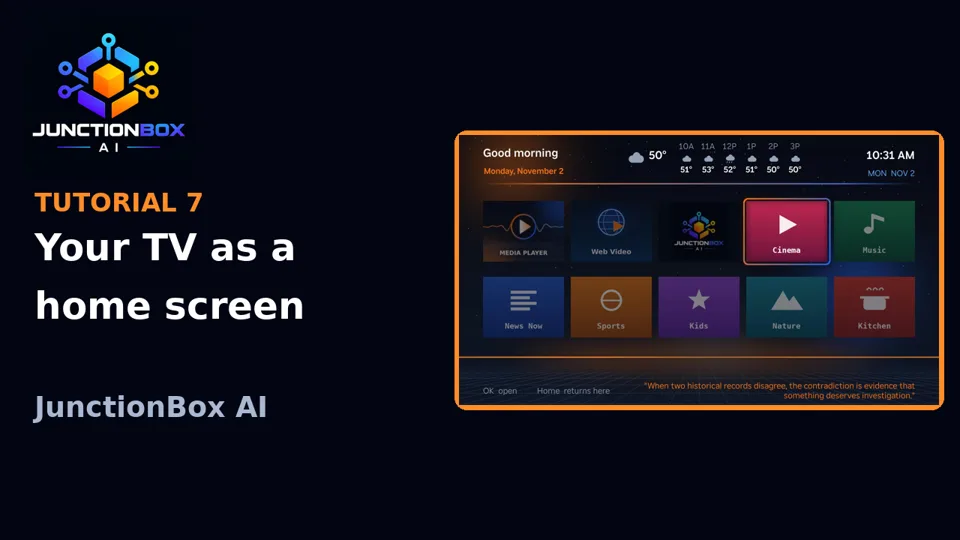
- Home: the top row are your apps, then Media Player (play a video or audio address), Web Video, JunctionBox (a row of hub tiles, five at a time on a Roku) and Settings. Leaving an app with Back or Home returns to the launcher; to really leave, use Settings, Exit launcher.
- Hub tiles, depending on the plugins you have: Games (four arcade games), Grill (a Pit Boss grill's temperatures), Home Control (lights, groups, colours, air conditioning, TV remote), Ring Security (snapshots, live view with audio), Video Studio (your generated videos, remembering where you stopped; Movie Maker can plan, review and export a whole movie from the couch), Photos (Stickers, Age Shift, Storyboard, Time Machine; hidden groups never appear and password-protected groups show as locked), Books (Comic Studio and Book Studio PDFs and your Bibles, each remembering its page, with a contents and chapter list and study guides, and an optional Read aloud that reads a Bible or Book Studio book to you, turning the pages as it goes: press Options (
*) on Roku or OK on Google TV, never on unless you choose it; add your own EPUBs and PDFs, or free Project Gutenberg books, from the plugin page and they appear under My books), Recipes, Box Status. Favourite teams get their own tiles with the next game and a full schedule (set up on the plugin page, card 9), and TV reminders (card 10) turn the TV on and tell you what you asked to be reminded about, aloud, until you press Done. - Web Video: browse a website with the remote; when a page has a video a green VIDEO FOUND badge appears and Play hands it to the TV's own player. YouTube links open in the Roku's YouTube app. Videos you save in the Watch List plugin appear on its start page.
- Terminals, Box Shells, Screen Share and Agents are powerful, so they stay off until you set a PIN (4 to 12 digits) on card 6. The TV asks for it each time, five wrong tries lock it for five minutes, and a session signs out after 15 idle minutes.
- Claude, Codex, Grok: a terminal for that coding agent running on the JunctionBox computer. Card 6 lets you pick how much each may do without asking. Sessions keep running when you leave the screen.
- Box Shells: a shell on any box JunctionBox knows, using the credentials JunctionBox already holds; nothing is stored on the TV.
- Screen Share: a box's screen on the TV, driven with the remote's pointer; it needs the Web Video part.
- Agents: chat with your JunctionBox agents, with the same permissions, sandbox and history as in the web app. Tool approvals and questions appear on the TV, and pop-ups go only to the TV that started the chat.
- JB Settings (PIN) shows GPU services, machine credentials (write-only), system health and Away access, which publishes only the launcher bridge through Tailscale Funnel so a TV on another network can still use it.
Android tablet launcher
The plugin also contains a launcher for an Android tablet (Android 8 or newer). It is a small app, tablet.apk (package com.junctionbox.tablet), that shows the bridge's touch pages full screen and can be the tablet's Home screen. The pages come from your computer, so new features appear without reinstalling the app, and the same bridge and key are used as for the TVs.
- Home: your apps as icons (with favorites you choose) and the JunctionBox plugins you pin. A battery and network indicator is shown, and the app can float as a small picture-in-picture window.
- Screens: Agents (chat with your JunctionBox agents), Home Control, Recipes, Reminders, Cameras (Ring), Terminal and Screen Share. Agents, Terminal and Screen Share use the same PIN as on the TVs (card 6); one PIN unlocks all three.
- Away from home: it tries the other addresses JunctionBox publishes (Tailscale Funnel, card 7) when your home address can't be reached.
- Setting it up (by hand for now; the plugin page has no install button for tablets):
- On the tablet turn on Developer options and Wireless debugging (or connect USB debugging), and connect from your computer with
adb. - Install the app, which is in the plugin's folder (
~/.junctionbox/plugins/smart-tv-launcher/launcher/android-tablet/tablet.apk):adb install tablet.apk. - Give it the bridge address and key once:
adb shell am start -n com.junctionbox.tablet/.MainActivity --es bridge http://YOUR-COMPUTER:PORT --es token KEY. The address is your computer's address on the home network and the bridge's port (8791 unless you changed it, in which case it is in the file namedportin the bridge's data folder), and the key is the file namedtokenin that same folder (~/.roku-launcheron Linux and macOS). - Press Home on the tablet and choose JunctionBox as the Home app if you want it to be the Home screen.
- On the tablet turn on Developer options and Wireless debugging (or connect USB debugging), and connect from your computer with
- Building the app yourself:
launcher/android-tablet/build_apk.shbuilds it with the Android SDK command-line tools. The signing key is kept outside the plugin (~/.junctionbox/tablet-launcher-android.keystore); keep it, because a tablet only accepts an update signed with the same key. - Files: the app is in
launcher/android-tablet/(src/.../MainActivity.java), the touch pages are inlauncher/bridge/tablet/(index.html,core.js,home.js,agents.js,hc.js,recipes.js,reminders.js,cameras.js,terminal.js,share.js,unlock.js), and the bridge serves them at/tablet/and keeps each tablet's favorites and pinned plugins (/tablet/favorites,/tablet/pinned_plugins).
Picture views for Ring cameras
During a Ring live view on a Roku, press Play/Pause to cycle through picture views: Normal, Night green, Night red, Low light, Contrast, Heat map, Edges, Motion map and Motion trails. They enhance or recolour what the camera sends (they are not real infrared or thermal vision), and the choice is remembered for that camera.
Tutorials
The Tutorials tile (Roku, Google TV and Fire TV) lists the JunctionBox AI video tutorials. Press OK on one and it plays in the TV's YouTube app. On the web console, Video tutorials in the left menu and a link on the Dashboard's Getting started card open the tutorials page on junctionboxai.com.
Games
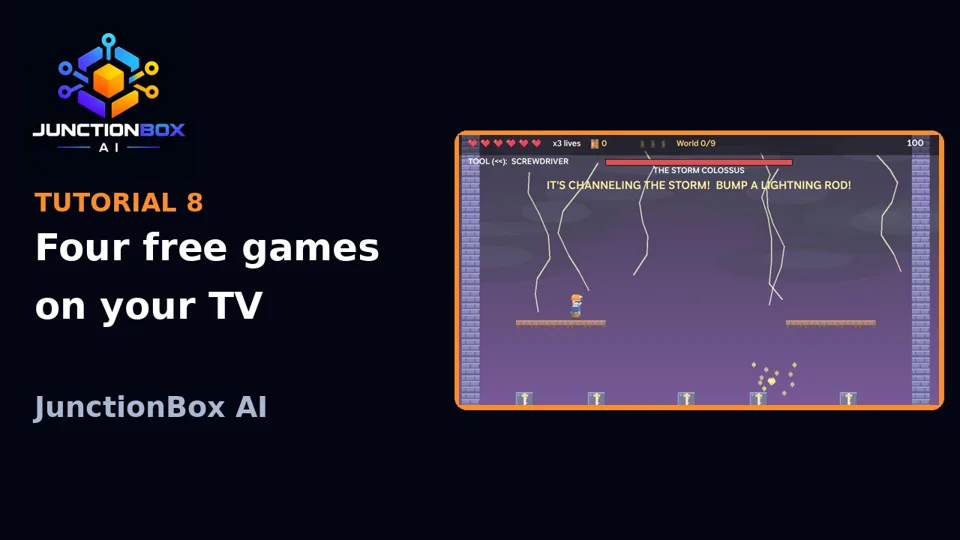
The Games tile on the JunctionBox screen opens one row of four original games, free for everyone and made for the Roku:
- Tap Takeover: a maze chase. You are a pint glass collecting bubbles while four bottle caps hunt you; power pours turn the tables.
- Stack Attack: falling blocks, with a hold slot, a three-piece preview, combos and a choice of starting level.
- Pacific Fury: air combat over six missions with a boss at the end of each. Your aircraft fires by itself; OK drops a bomb and \* changes weapon.
- Junction John: The Lost Circuits: a story platformer in six worlds. Pick New Game to start the story, Continue to carry on, and Cinematics to watch any scene you have unlocked again. Warp conduits and the Fuse Vault lead to hidden stages, and each world ends in a boss.
Each game has its own menu with High Scores, Settings and How to Play. The top ten for each game is shared by every TV in your house and kept on your computer. The cinematics are 35 short narrated films that come with the game: the opening, each world's intro and finale, and the boss scenes. They stream from your computer to the TV. If a film can't play, the scene shows as a story card instead. Back leaves a game.
The grill
With the Pit Boss Grill plugin set up (Plugins, Pit Boss Grill, then add your grill), a Grill tile on the TV shows the grill and probe temperatures, what the grill is doing and any error, refreshed every few seconds. In the plugin you can also switch on alerts for each grill: the TVs wake, show it full screen and say it out loud when the grill reaches its temperature, a probe reaches its target, or the grill reports a problem such as being out of pellets.
The Morning Briefing
A narrated program, about 10 minutes by default (3 to 20 allowed), made fresh every morning on the JunctionBox computer from your weather, calendar, news, a scripture reading and the markets. It needs no graphics card, has no payment gating, and nothing is made until you turn it on.
Turn it on and set it up (cards 8 to 15):
- Card 8: the master switch, the time to start making it (it takes up to about half an hour, so set it well before you wake), how many times to retry if a run fails, the length, and how many days to keep. Make today's now builds one immediately, Stop cancels, and Read today's script shows exactly what will be said. A computer that was off at the set time catches up when it starts.
- Card 9, what is in it: weather and alerts, your calendar, the news, scripture and markets, each on or off, in your order, with a share of the time. A part with nothing to say is skipped, and a severe weather alert moves to the front.
- Card 10, the news: topics to search for (several phrases can be joined with |, with an optional story limit), subjects to leave out, and What matters most, a short instruction about what to cover first (for example your own state's election results ahead of everything else). A JunctionBox agent you choose writes short summaries; without one the headlines are read as published. If the local search is throttled it falls back to Google News. Outlets are named at the end.
- Card 11, scripture: a Psalm and a Proverb by the day of the month, a book read a little each day, one passage you choose, or daily readings from a table you supply. It reads at whole verses and announces the reference the way a person would ("Proverbs chapter 4, verses 1 through 5").
- Card 12, your calendar: add each Google Calendar with its secret address in iCal format. The address is stored on this computer in an owner-only file, never shown again, and calendars appear by name; private events are read as "Private event". Test the calendars reads each once.
- Card 13, markets: index and commodity figures from a best-effort public feed (or a free Finnhub key) and Treasury yields from the US Treasury, each with its date. It never gives advice.
- Card 14, voice and pictures: the narrator is Kokoro, running on the processor. Press Install the voice once (a download) and pick the voice and speed; without it a plainer fallback voice or silent captions are used. Backgrounds are slow loops of the starter clips that come with the plugin, or your own, including clips made in Video Studio. ffmpeg must be installed on the computer.
- Card 15, on the TVs: whether TVs play it by themselves, which ones are left out, and the hour after which they don't.
Watching it:
- The first time each TV is turned on each day (before the cut-off hour, and within 15 minutes of turning on), a Roku starts the briefing by itself, straight into the program rather than a menu. A Google TV starts it the first time its home screen shows that day. Back skips it. Each TV does this once a day.
- To watch it again, use the Good morning, Wednesday, Nov 4 heading at the top of the home screen. On a Roku press Up from the tiles, then OK (Right moves to the weather, Down or Back returns to the tiles). On a Google TV it is the banner at the top. It has no tile of its own.
- The briefing page shows the day's picture, its length and its parts. OK plays, or start at any part. While it plays: OK pauses, Left / Right go back and forward 10 seconds, Up / Down jump parts, Back skips. Sources and notes lists where everything came from and anything left out, Earlier briefings shows the last week, and Make a fresh one now rebuilds today's.
Nothing is installed on the TVs each morning: the video is made on the computer and streamed to the TV from it. The computer and the bridge must be on when the TV is turned on.
Updating, removing and fixing
- Update: install a newer
smart-tv-launcher.zip, restart JunctionBox, then press Update the bridge (if offered) and Update on each TV. - Remove a TV: Remove on its row; you're asked whether to delete the app from the TV too. To remove everything, remove the TVs, press Stop on the bridge, delete the plugin, and delete
~/.roku-launcher. - Common problems: "Can't reach a Roku" means it is in standby, on another (guest) network, or the address changed. "Developer mode is off" means repeat the Roku key sequence (a factory reset clears it). A Google TV pairing code expires in a minute or two: open Pair device with pairing code again. The TV app can't reach the bridge when the computer has several network connections: set the address in card 4's Advanced and press Install again. A terminal that says "The terminal is off" needs a PIN on card 6. No briefing video on a TV means the briefing isn't ready yet (check card 8) or the TV is excluded in card 15. The bridge's log is
~/.roku-launcher/bridge.log(Show log on the page). SeeSMART_TV_LAUNCHER.mdfor the full table.
Privacy and safety
The bridge listens on your home network only and every request needs a private token; media links are signed and short-lived. The Roku developer password is stored encrypted and used only to install on your own TVs. Calendar addresses and market keys are credentials kept in owner-only files and never shown again. Terminals, shells, Screen Share and Agents can act on your computer, so use them only on a network you trust: anyone who knows the PIN and can reach the bridge gets the access you have at that computer.
Source: USER_GUIDE.md in the public releases repository.